

Overview
Payment Links allow you to quickly generate a hosted checkout link from the Gale Dashboard. These links can be shared with customers to accept one-time payments or recurring subscription payments. This guide walks you through:- Creating a one-time payment link
- Creating a recurring / subscription payment link
Prerequisites
Before creating a payment link, make sure the following requirements are met:- You must have access to the Gale Dashboard.
- Products Available in Gale
- At least one product must be synced from your store
OR - A product must be manually created from the Gale Dashboard
- At least one product must be synced from your store
Creating a One-Time Payment Link
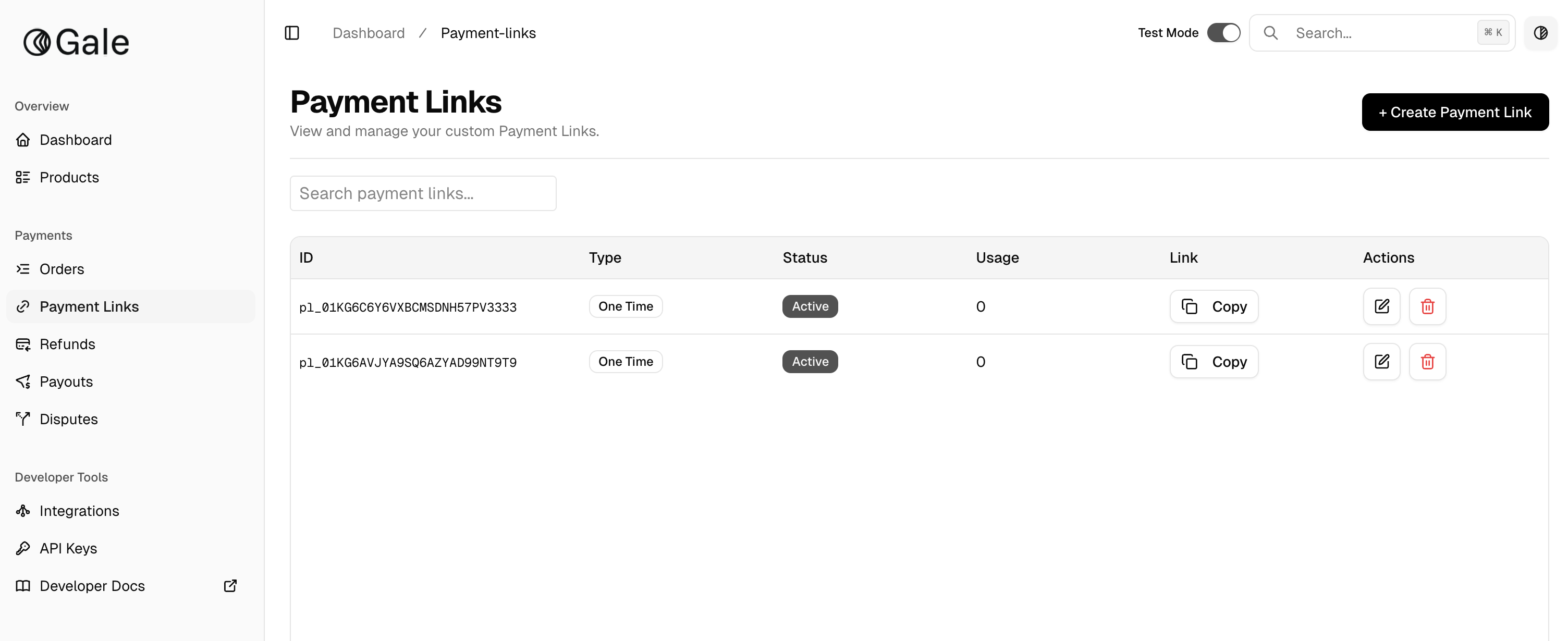
Follow these steps to create a one-time payment link:Step 1: Navigate to Payment Links
- Log in to the Gale Dashboard
- Go to Payment Links
- Click Create Payment Link
Step 2: Select a Product
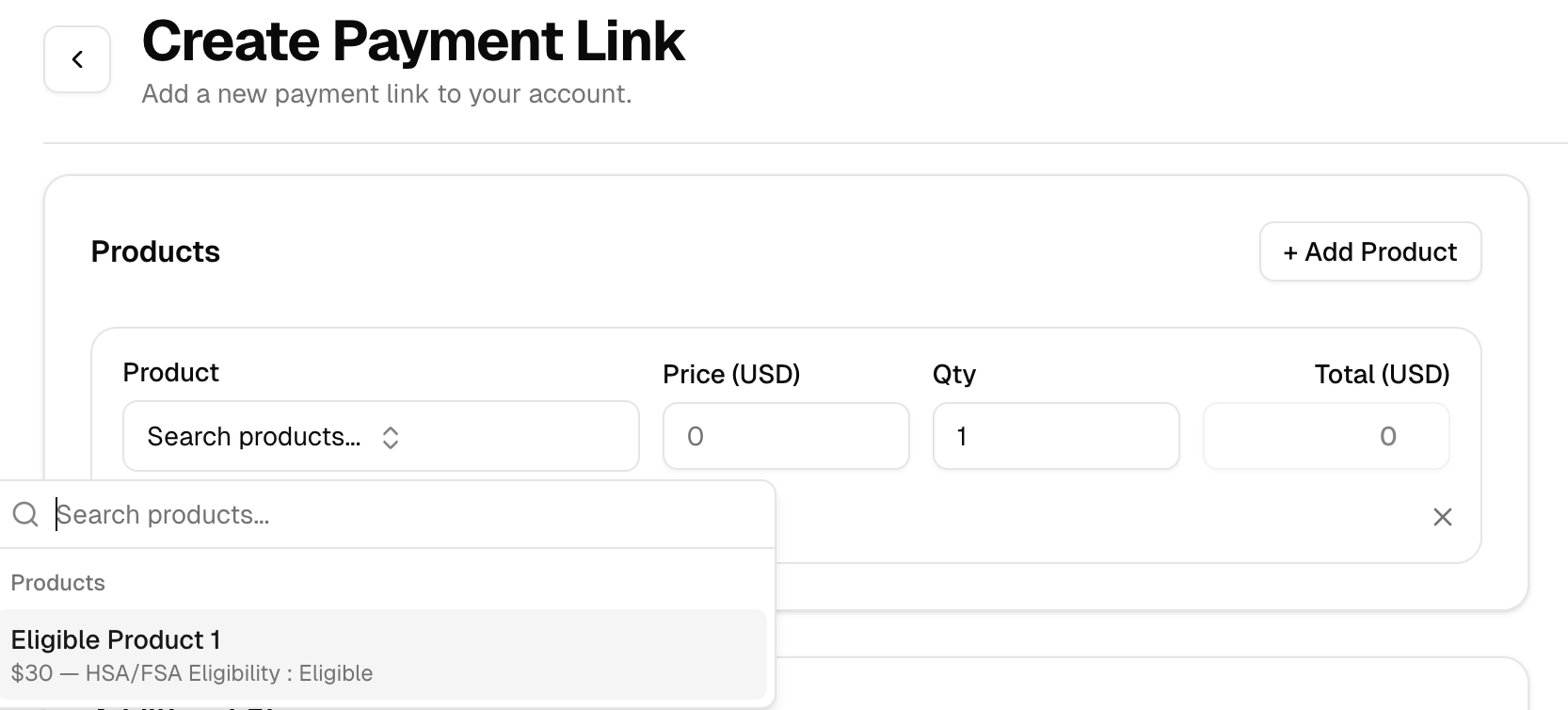
- In the Products section, choose a product from the dropdown
- This product will be charged when the payment link is used
Step 3: Configure Additional Charges (Optional)
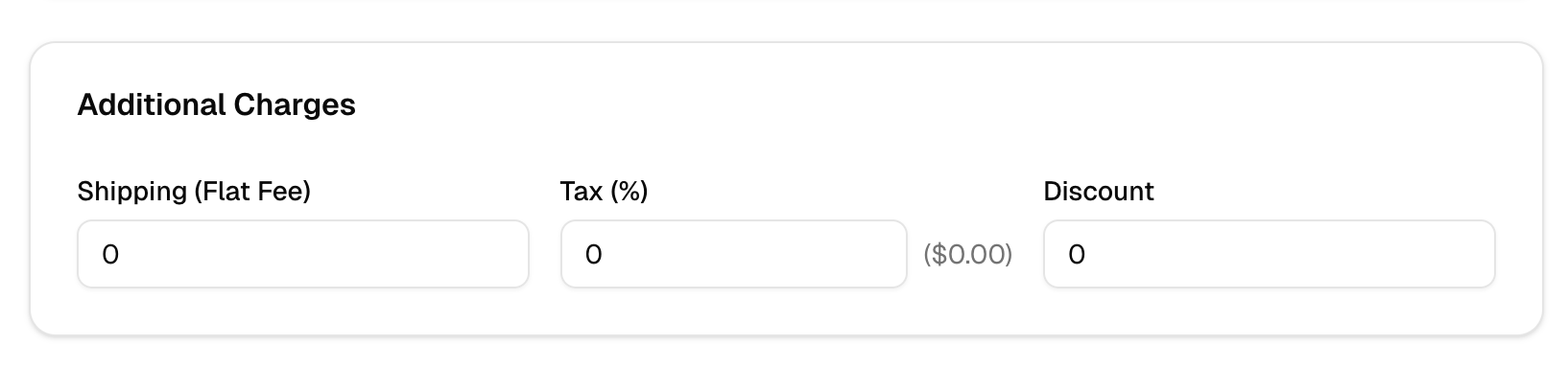
In the Additional Charges section, you can optionally add:- Shipping (Flat Fee)
- Discount
- Tax Percentage
Step 4: Add Multiple Shipping Rates (Optional)
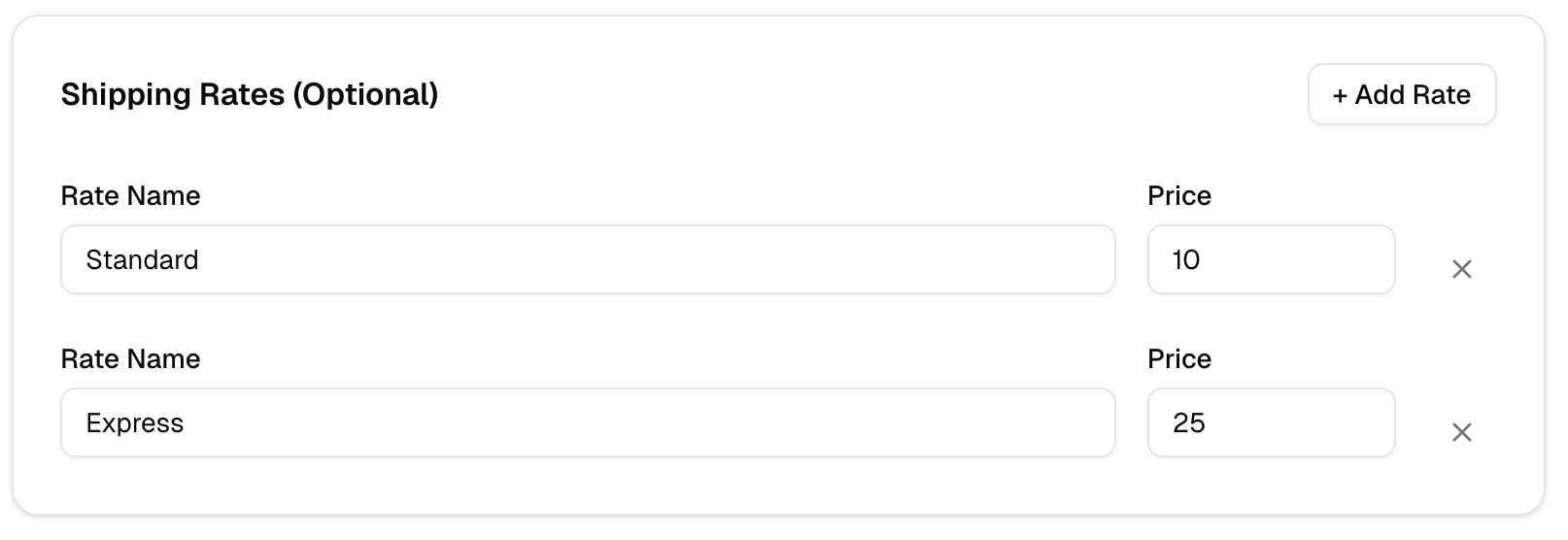
If you want to offer multiple shipping options:- Add multiple entries under the Shipping Rates section
- Each rate can have its own label and amount
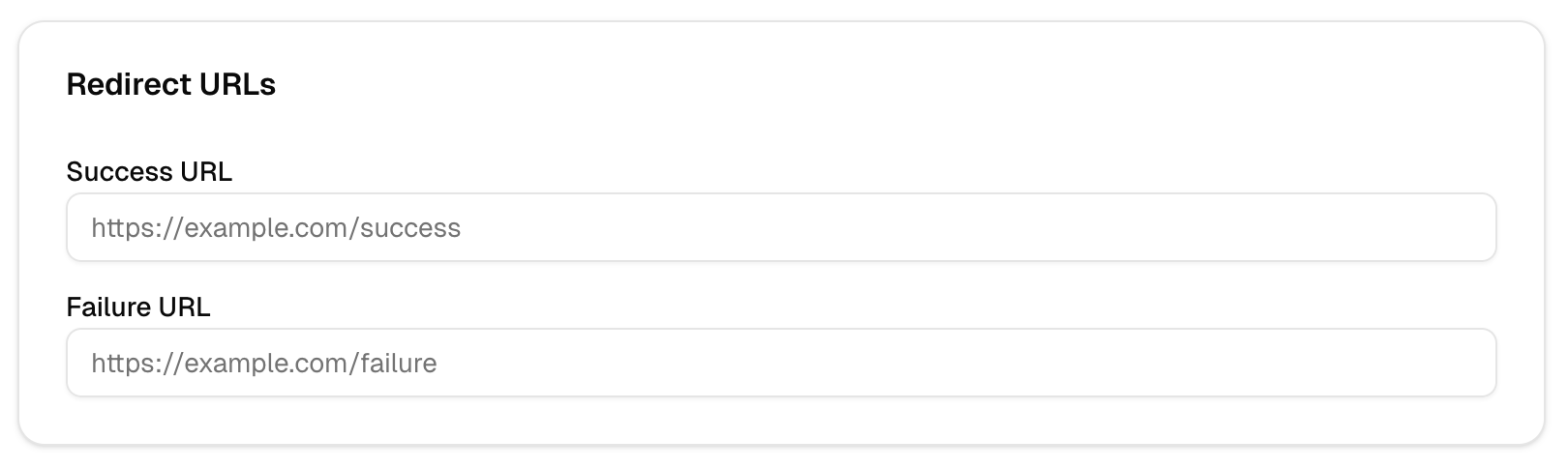
Step 5: Configure Redirect URLs
In the Redirect URLs section:- Enter a Success URL
→ Customer is redirected here after a successful payment - Enter a Failure URL
→ Customer is redirected here if the payment fails or is canceled
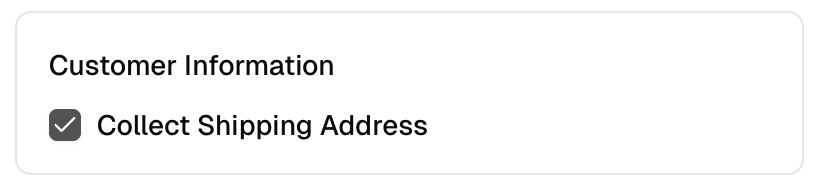
Step 6: Collect Shipping Information (Optional)
- If you need to collect shipping details from the customer, make sure the Collect Shipping Information checkbox is checked
Step 7: Create the Payment Link
- Review all details
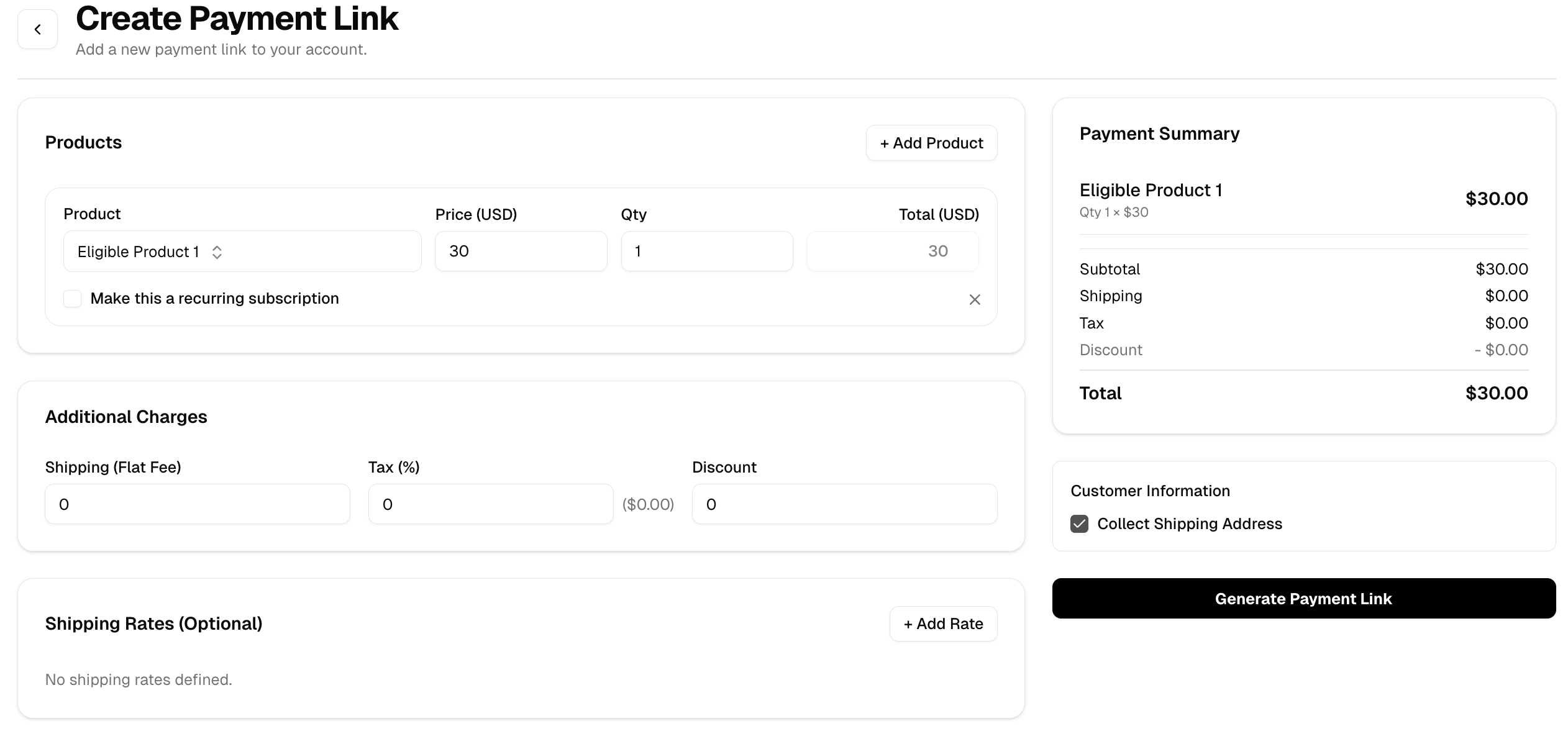
- Click Create Payment Link
- Copy and share the generated payment link with your customer
Step 8: Client Reference ID (optional)
You can simplify reconciliation by appending aclient_reference_id query parameter to any payment link URL. This is entirely optional — payment links work the same with or without it. When provided, it allows you to associate a payment with a record in your own system, such as a customer ID, order ID, or cart ID.
How it works
After creating a payment link, you can optionally append client_reference_id as a query string parameter to the URL:
client_reference_id is included:
- It will be passed along in the webhook events you receive for that payment.
- You can also retrieve the payment status using the
client_reference_iddirectly via the API.
Creating a Recurring / Subscription Payment Link
The process for creating a recurring (subscription) payment link is almost identical to a one-time payment link, with one additional step during product selection.Follow Steps 1–4 Above
- Navigate to Payment Links
- Click Create Payment Link
- Select a product
- Configure optional charges (shipping, discount, tax)
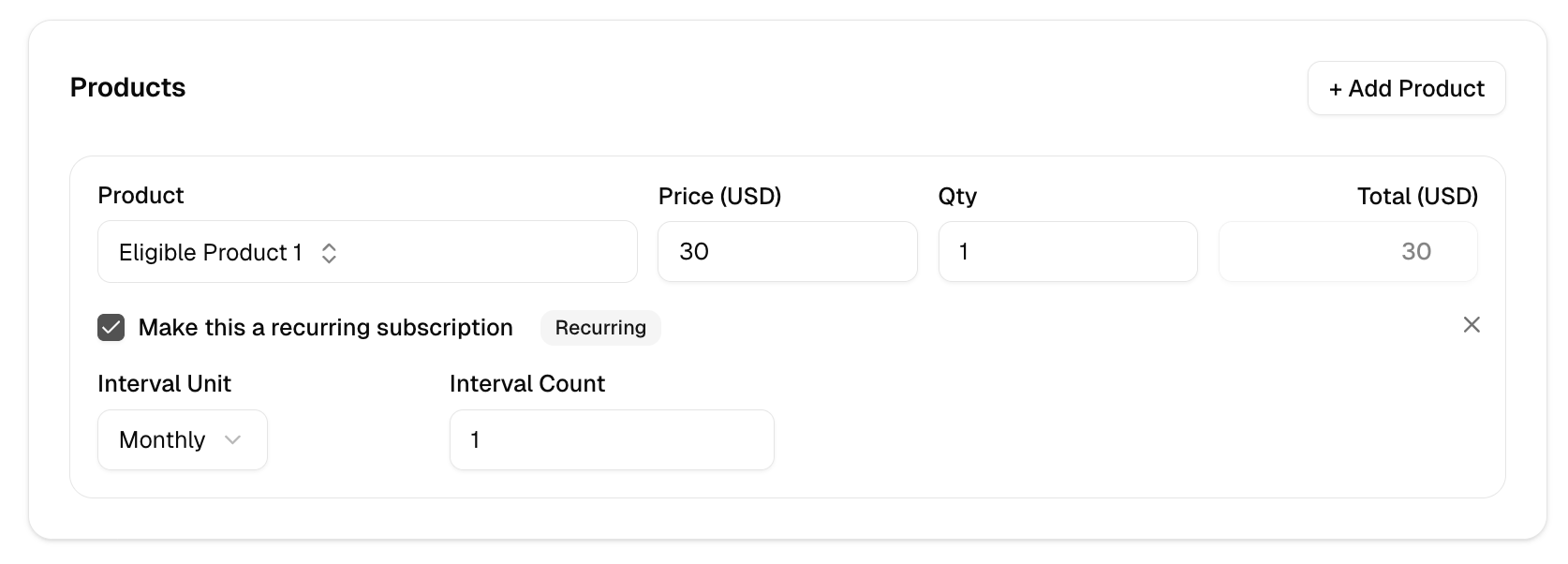
Enable Recurring Subscription
When selecting a product:- Enable Make this a recurring subscription
- Choose a Subscription Interval (e.g. weekly, monthly, yearly)
Complete Remaining Steps
- Configure Redirect URLs
- Enable Collect Shipping Information if required
- Click Create Payment Link
Notes & Best Practices
- Ensure redirect URLs are valid and publicly accessible
- Use different payment links for different pricing or subscription intervals
- Test payment links in a test environment before sharing with customers
If you have any questions or need help setting up payment links, reach out to the Gale support team.