> ## Documentation Index
> Fetch the complete documentation index at: https://docs.withgale.com/llms.txt
> Use this file to discover all available pages before exploring further.
# Woocommerce
> This guide will walk you through the process of installing and configuring Gale Payments on your WooCommerce store, enabling HSA/FSA payments for your customers.
 ## Prerequisites
Before you begin, ensure the following:
* **WooCommerce Plugin Installed** : Your WordPress store must have the WooCommerce plugin installed and activated.
***
## Installation Steps
1. Install [Gale HSA & FSA Payments ](https://wordpress.org/plugins/gale-hsa-fsa-payments/) Wordpress Plugin
2. Once the installation is complete, **Activate** the Plugin.
## Prerequisites
Before you begin, ensure the following:
* **WooCommerce Plugin Installed** : Your WordPress store must have the WooCommerce plugin installed and activated.
***
## Installation Steps
1. Install [Gale HSA & FSA Payments ](https://wordpress.org/plugins/gale-hsa-fsa-payments/) Wordpress Plugin
2. Once the installation is complete, **Activate** the Plugin.
 1. Navigate to `WooCommerce > Settings > Payments`
2. Locate the **Gale Payments** option and click `Manage`
1. Navigate to `WooCommerce > Settings > Payments`
2. Locate the **Gale Payments** option and click `Manage`
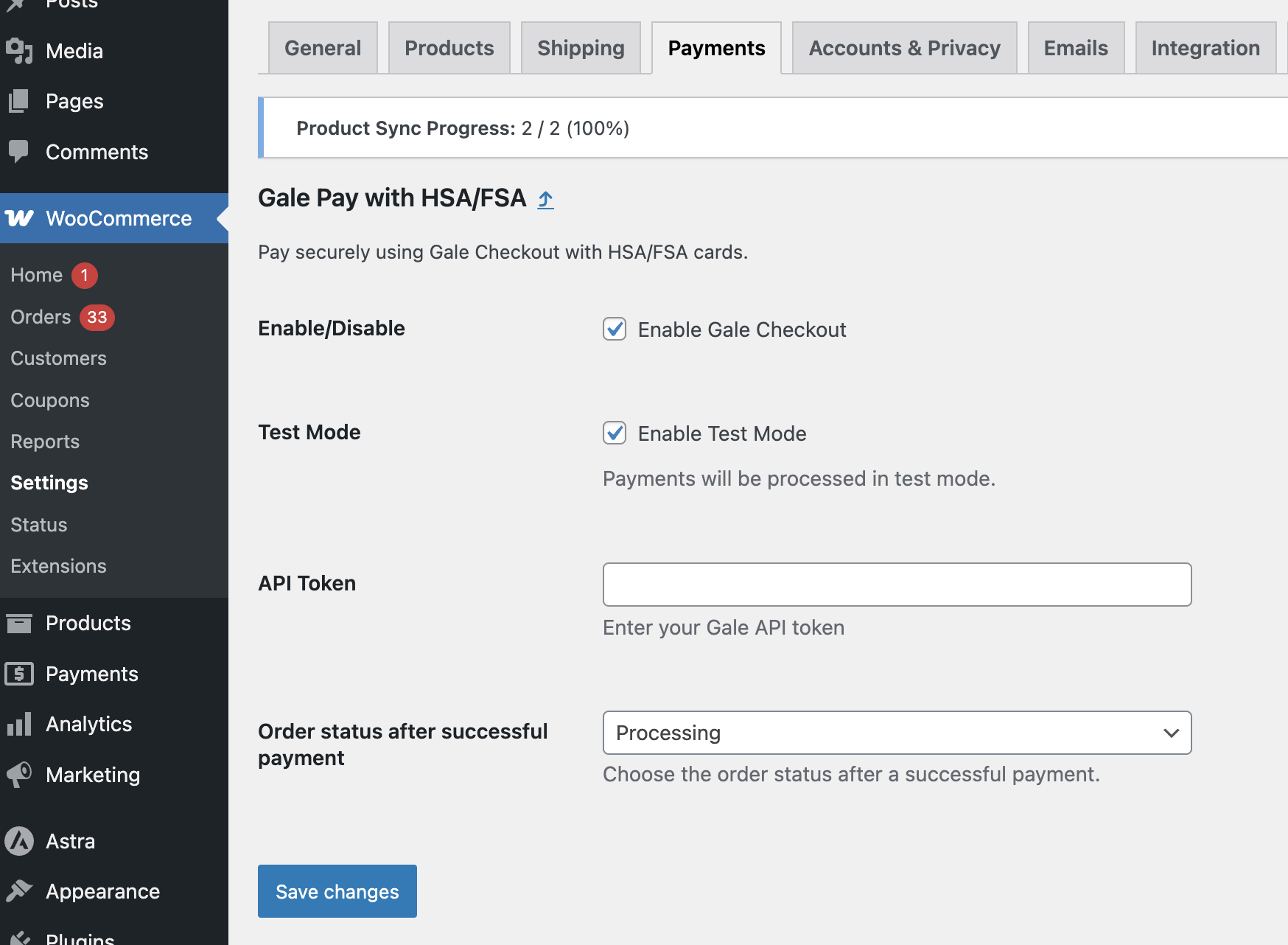
 1. Enter your **API Key** provided during signup.
2. Enable **Test Mode** to verify functionality before going live.
3. Please select the order status from the dropdown menu after a successful payment — we recommend choosing **Processing**.
1. Enter your **API Key** provided during signup.
2. Enable **Test Mode** to verify functionality before going live.
3. Please select the order status from the dropdown menu after a successful payment — we recommend choosing **Processing**.
 1. Go to **Products** Section in WooCommerce.
2. **Add** or **Edit** a New Product.
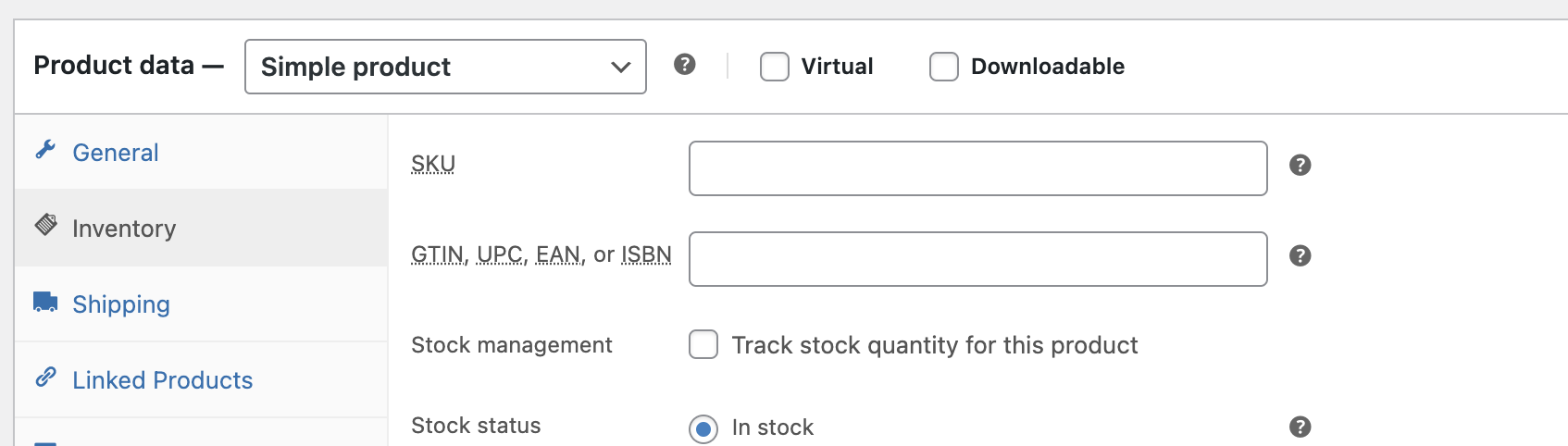
Once you're in the **Product Editor Page**, go to the **Inventory** section and add the **GTIN/UPC Code** in the field, then **Save**.
You only need to enter the GTIN/UPC code **if you are SIGIS approved and using IIAS**.\
If you are using the **LMN (Letter of Medical Necessity)** flow, you can skip this step.
1. Go to **Products** Section in WooCommerce.
2. **Add** or **Edit** a New Product.
Once you're in the **Product Editor Page**, go to the **Inventory** section and add the **GTIN/UPC Code** in the field, then **Save**.
You only need to enter the GTIN/UPC code **if you are SIGIS approved and using IIAS**.\
If you are using the **LMN (Letter of Medical Necessity)** flow, you can skip this step.
 Go to the **Gale Products** page in your WordPress Dashboard Sidebar and click the **Sync Products** button.
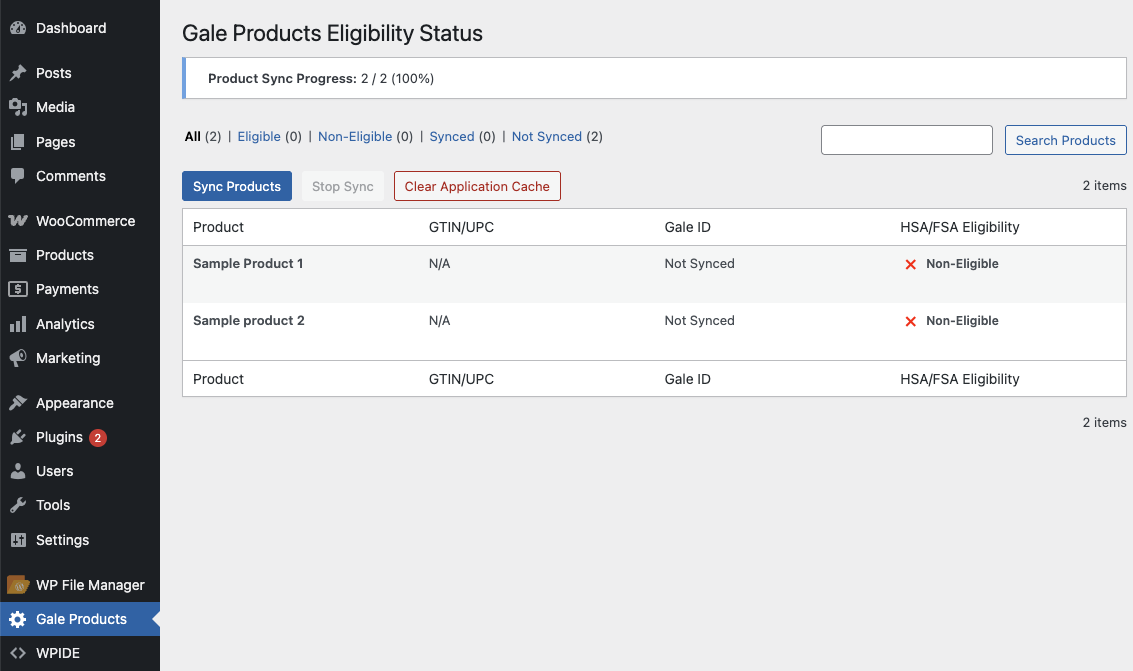 **Once all of the products are synced, you can see a list of HSA/FSA Eligible Products on this page.**
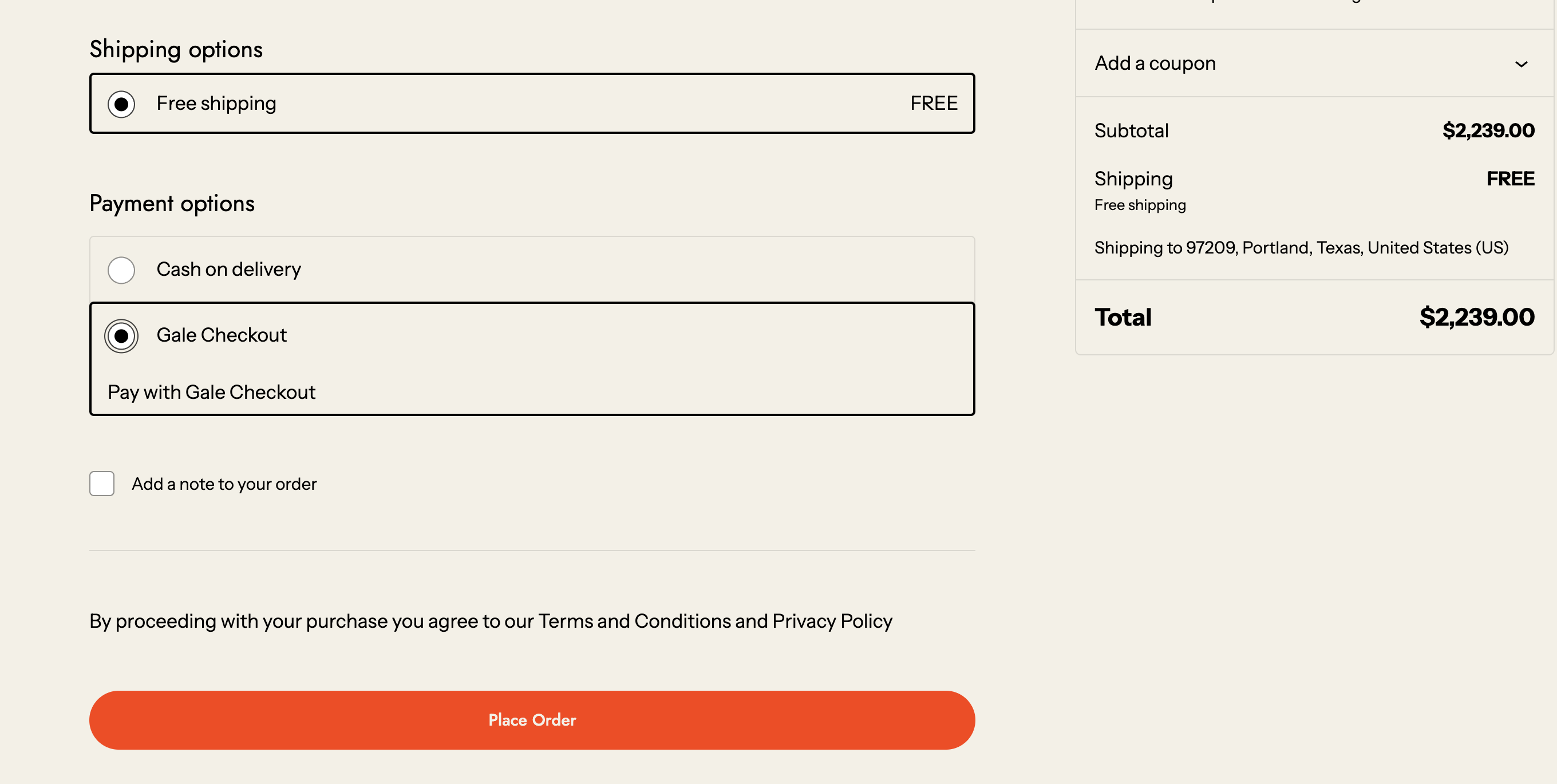
1. Add a product to your WooCommerce store.
2. Proceed to checkout and select **Pay with HSA/FSA**.
3. Complete a test transaction using these [Test Cards ](/resources/test-cards)
4. Verify the transaction appears in your WooCommerce orders.
**Once all of the products are synced, you can see a list of HSA/FSA Eligible Products on this page.**
1. Add a product to your WooCommerce store.
2. Proceed to checkout and select **Pay with HSA/FSA**.
3. Complete a test transaction using these [Test Cards ](/resources/test-cards)
4. Verify the transaction appears in your WooCommerce orders.
 1. Once testing is successful, go back to the Gale Payments settings.
2. Uncheck the **Test Mode** option.
1. Once testing is successful, go back to the Gale Payments settings.
2. Uncheck the **Test Mode** option.
 1. **Save your changes.** Your customers can now make payments using their HSA/FSA cards!
## Next Step
Learn how to add **HSA/FSA Eligible** product messaging widgets to WooCommerce using shortcodes.
***
## Test Cards
Use these cards only when **Test Mode** is enabled.
***
## Troubleshooting
* **Plugin Not Visible** : Ensure WooCommerce is installed and updated to the latest version.
* **API Key Issues** : Double-check your API Key for accuracy.
* **Test Mode Transactions Failing** : Ensure you are using valid test credentials provided by Gale Payments.
***
## Need Help?
If you encounter any issues, contact our support team at [support@withgale.com](mailto:support@withgale.com). We're here to help!
***
By completing these steps, your WooCommerce store is now fully equipped to accept HSA/FSA payments with Gale Payments!
1. **Save your changes.** Your customers can now make payments using their HSA/FSA cards!
## Next Step
Learn how to add **HSA/FSA Eligible** product messaging widgets to WooCommerce using shortcodes.
***
## Test Cards
Use these cards only when **Test Mode** is enabled.
***
## Troubleshooting
* **Plugin Not Visible** : Ensure WooCommerce is installed and updated to the latest version.
* **API Key Issues** : Double-check your API Key for accuracy.
* **Test Mode Transactions Failing** : Ensure you are using valid test credentials provided by Gale Payments.
***
## Need Help?
If you encounter any issues, contact our support team at [support@withgale.com](mailto:support@withgale.com). We're here to help!
***
By completing these steps, your WooCommerce store is now fully equipped to accept HSA/FSA payments with Gale Payments!