> ## Documentation Index
> Fetch the complete documentation index at: https://docs.withgale.com/llms.txt
> Use this file to discover all available pages before exploring further.
# Shopify
This guide will walk you through the process of installing and configuring Gale Payments on your Shopify store, enabling HSA/FSA payments for your customers.
***
## Prerequisites
Before you begin, ensure the following:
* **Shopify Admin Access**: You have administrative access to your Shopify store.
* **API Key**: You can generate your API Key in your [Gale Dashboard](https://dashboard.withgale.com/).
***
## Installation Steps
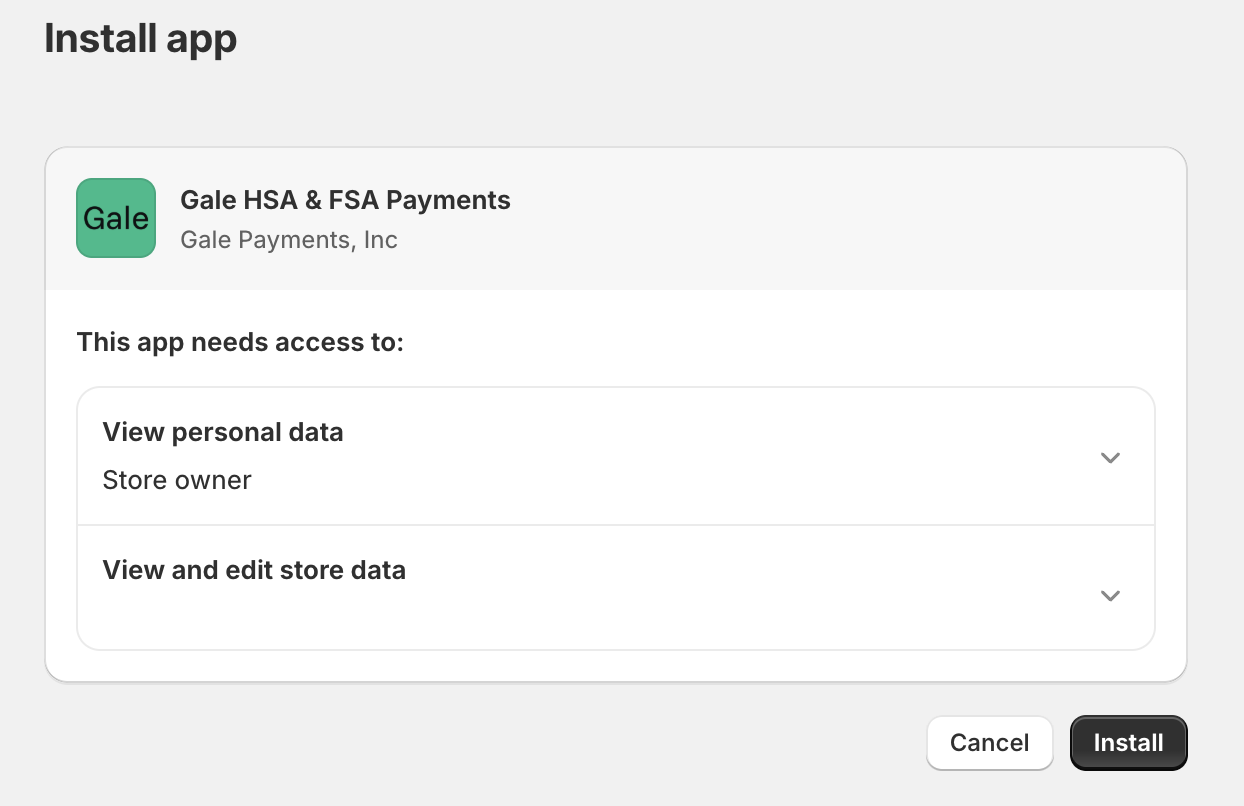
1. Install the [ Gale HSA & FSA Payments App ](https://apps.shopify.com/gale-hsa-fsa-payments)
2. Follow the prompts to add the payments app to your store.
 1. After installing the app, you will be redirected to Configure Gale Payments App
2. Enter your **Store Name** and **API Key** provided during onboarding.
1. After installing the app, you will be redirected to Configure Gale Payments App
2. Enter your **Store Name** and **API Key** provided during onboarding.
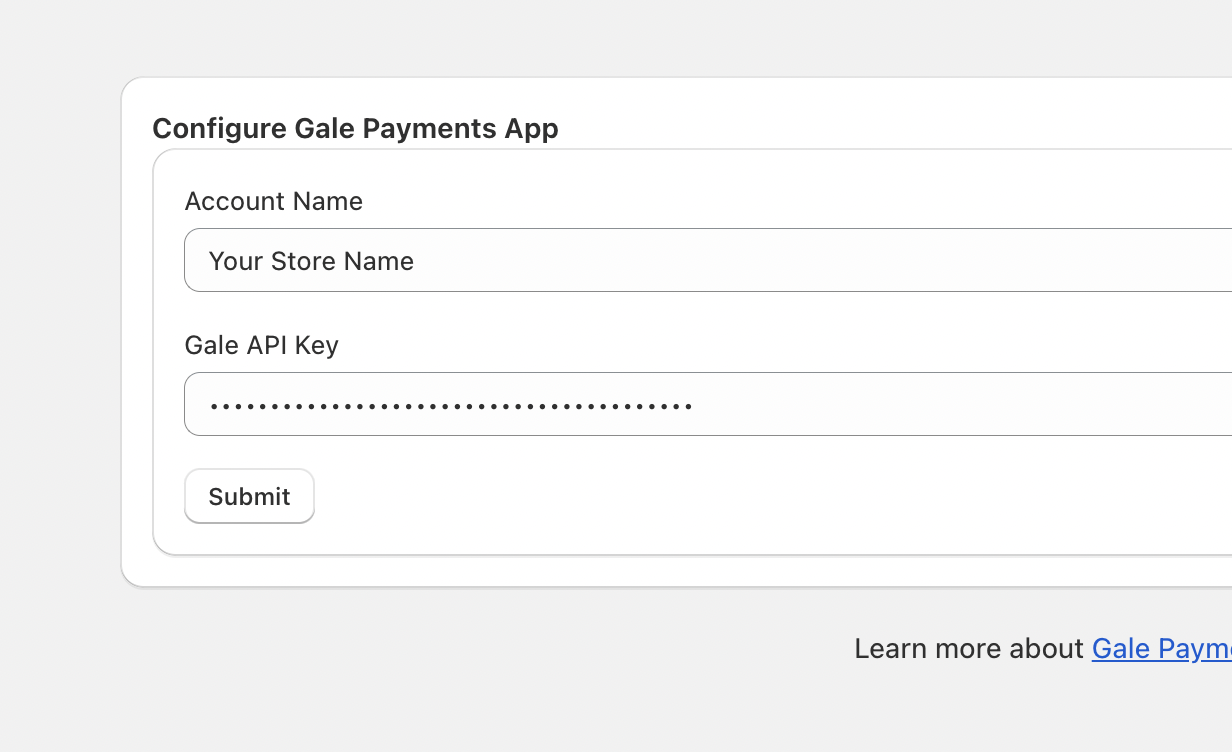 1. **Save** your settings.
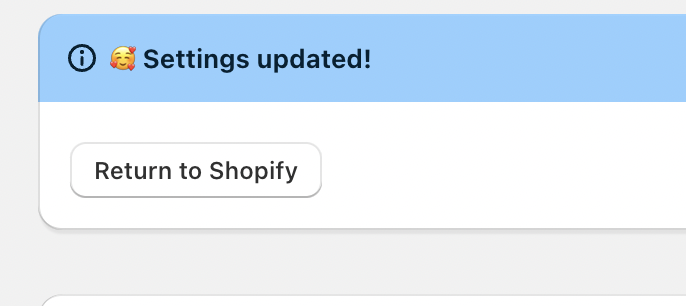 1. Click **Return to Shopify**.
1. Go to **Shopify Admin > Settings > Payments**.
2. Click **Add Payment Method**.
3. Select **Search by Provider** and type **"Gale"**.
1. Click **Return to Shopify**.
1. Go to **Shopify Admin > Settings > Payments**.
2. Click **Add Payment Method**.
3. Select **Search by Provider** and type **"Gale"**.
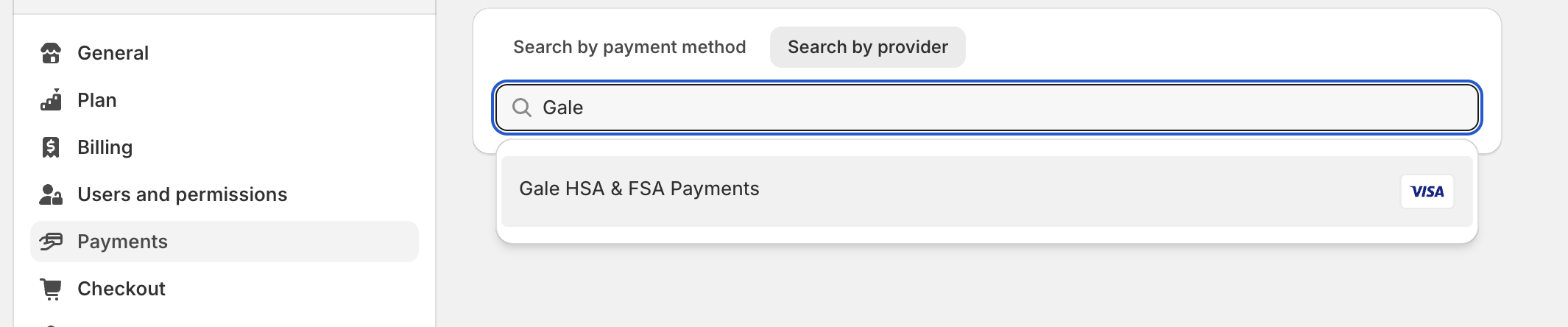 1. Choose **Gale HSA & FSA Payments** from the list.
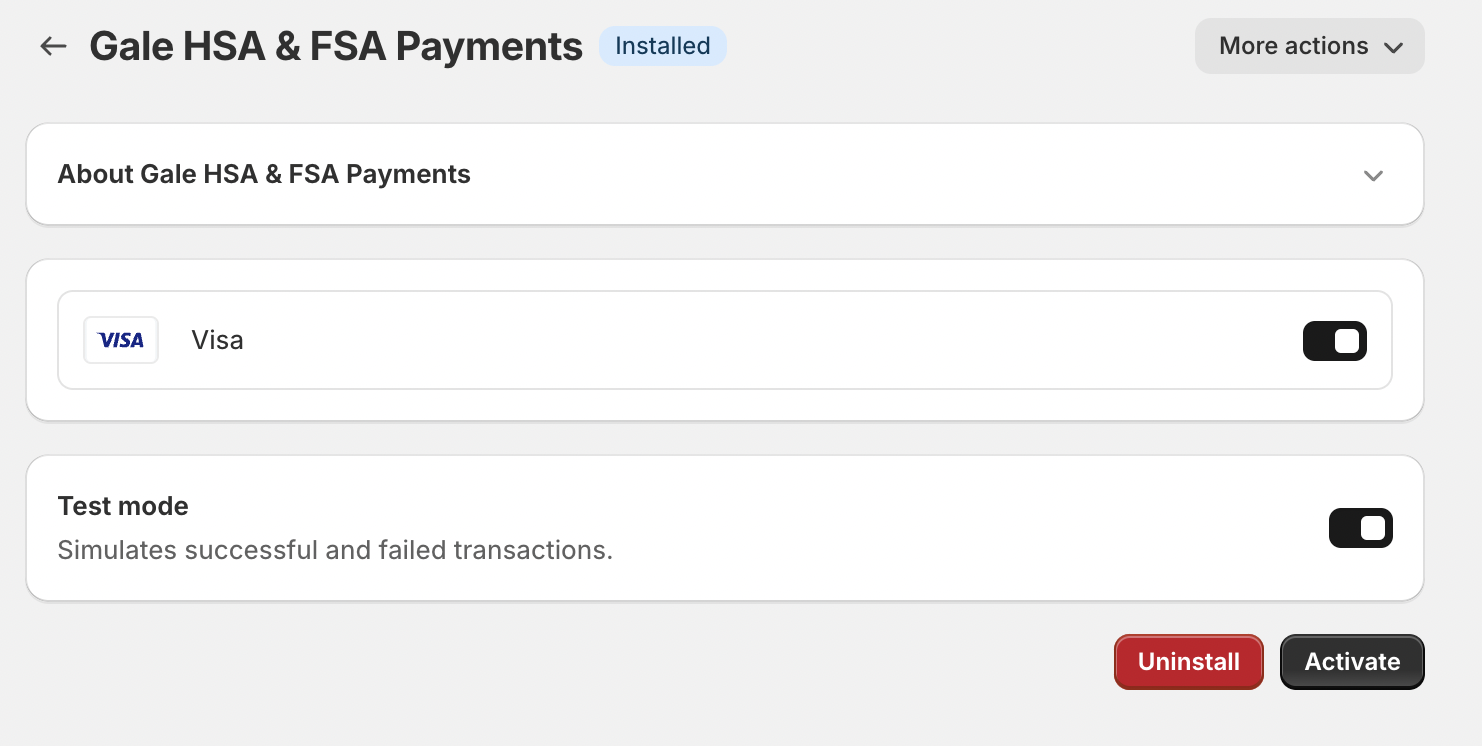 1. Enable **Test Mode** and click **Activate**.
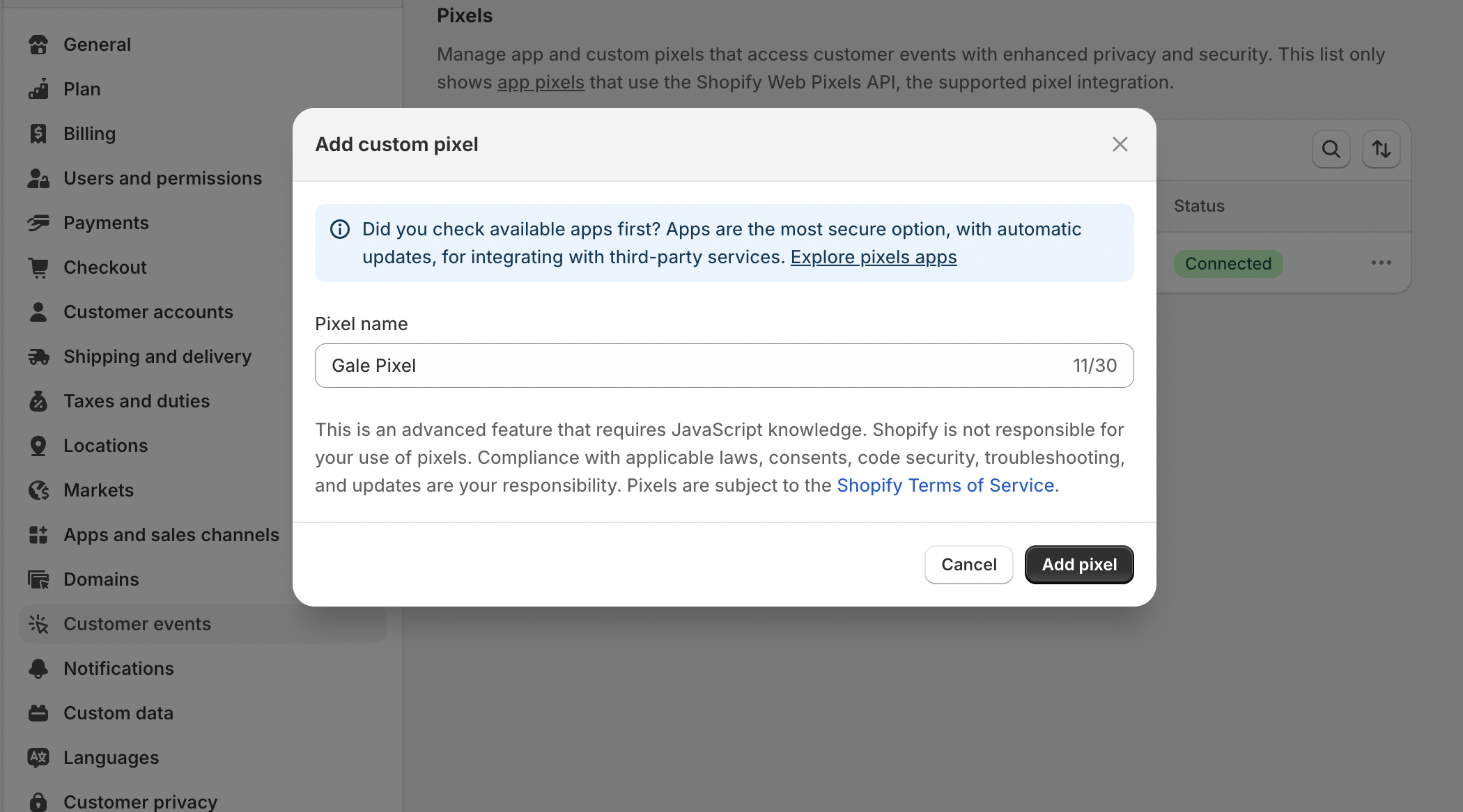
1. Go to **Shopify Admin > Settings > Customer Events**.
2. Click **Add Custom Pixel**.
3. Enter Pixel Name **"Gale Pixel"**.
1. Enable **Test Mode** and click **Activate**.
1. Go to **Shopify Admin > Settings > Customer Events**.
2. Click **Add Custom Pixel**.
3. Enter Pixel Name **"Gale Pixel"**.
 1. Enter the following **Pixel Code** and click **Connect** to save.
```javascript theme={null}
analytics.subscribe('payment_info_submitted', (event) => {
const checkout = event.data.checkout;
const payload = event.data.checkout;
fetch('https://checkoutv1.withgale.com/app/order_information', {
method: 'POST',
body: JSON.stringify(payload),
keepalive: true,
});
});
```
1. Enter the following **Pixel Code** and click **Connect** to save.
```javascript theme={null}
analytics.subscribe('payment_info_submitted', (event) => {
const checkout = event.data.checkout;
const payload = event.data.checkout;
fetch('https://checkoutv1.withgale.com/app/order_information', {
method: 'POST',
body: JSON.stringify(payload),
keepalive: true,
});
});
```
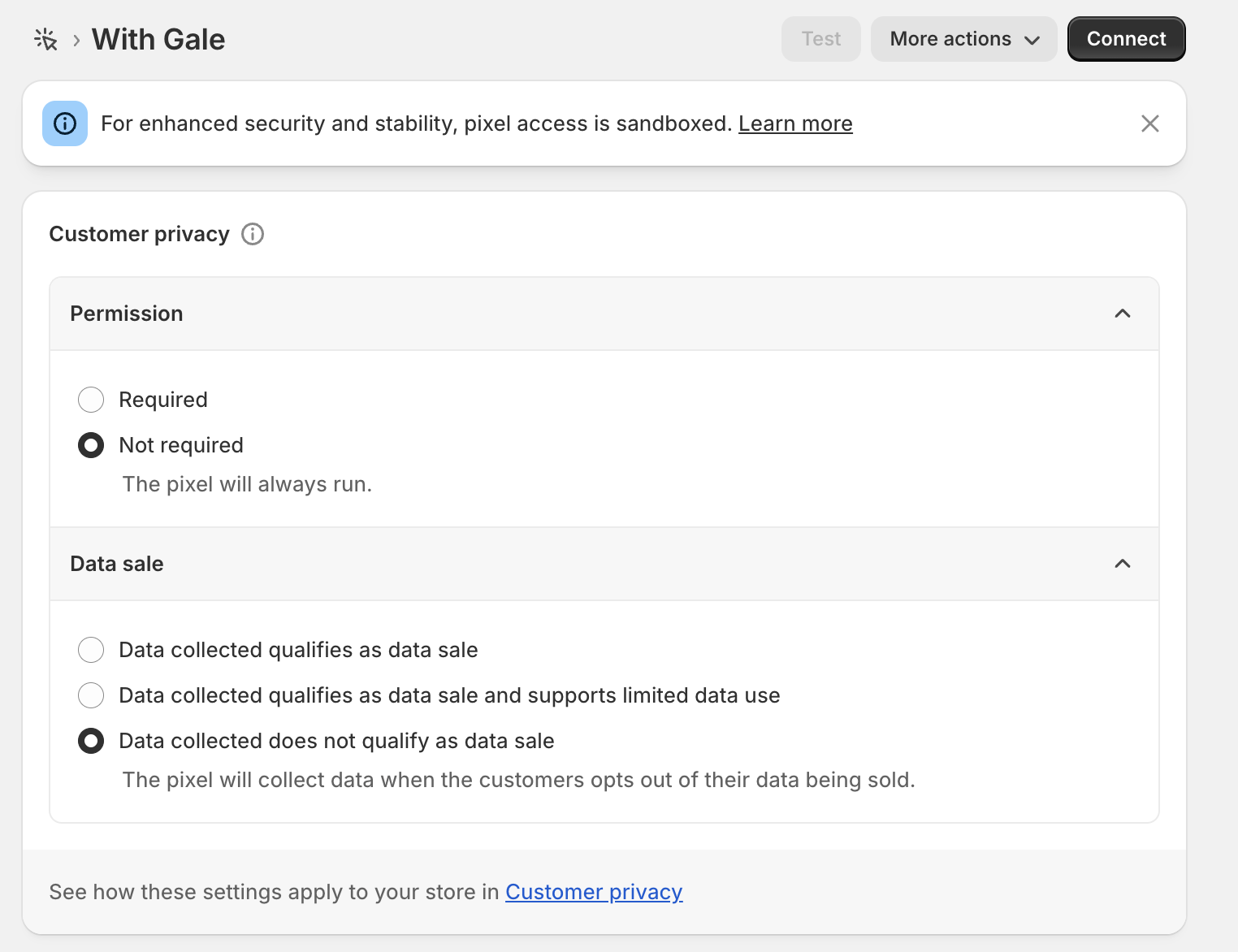 In the **Customer privacy** section, configure the settings as follows:
1. **Permission**
* Select **Not required**
2. **Data sale**
* Select **Data collected does not qualify as data sale**
In the **Customer privacy** section, configure the settings as follows:
1. **Permission**
* Select **Not required**
2. **Data sale**
* Select **Data collected does not qualify as data sale**
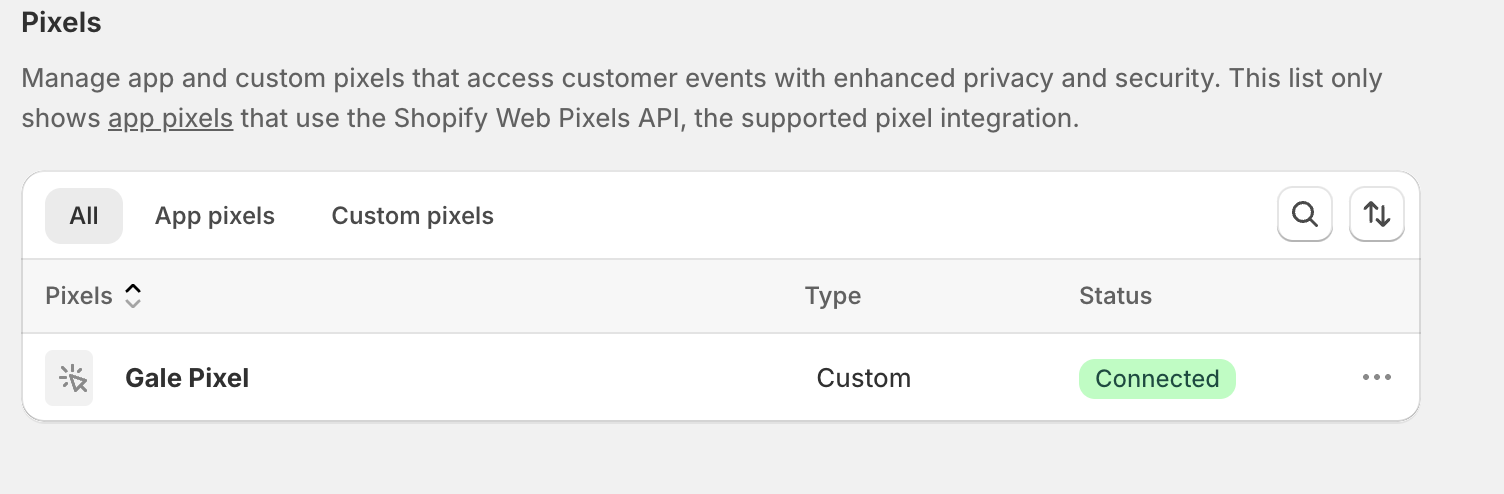 1. Make sure the Pixel status is **Connected**.
1. Go to your store and add a product to the cart.
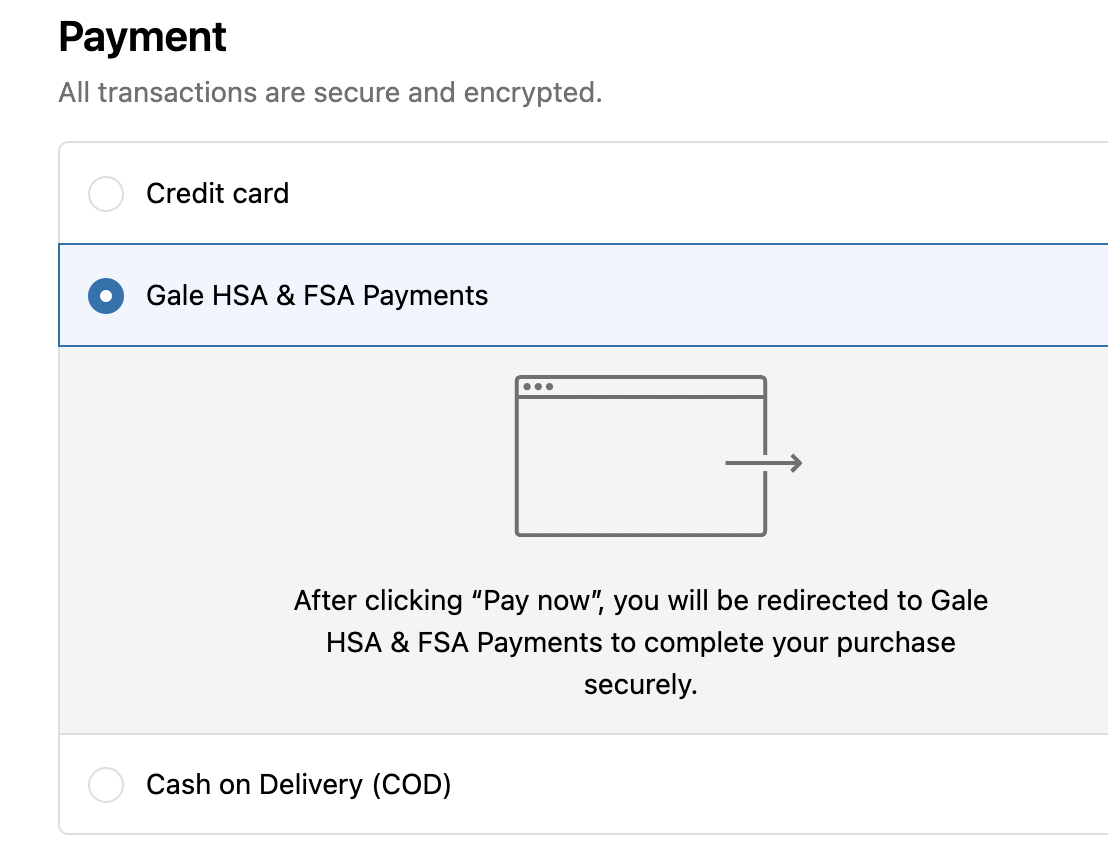
2. Proceed to checkout and select **Gale HSA & FSA Payments** as the payment method.
1. Make sure the Pixel status is **Connected**.
1. Go to your store and add a product to the cart.
2. Proceed to checkout and select **Gale HSA & FSA Payments** as the payment method.
 1. Use one of the [Test Cards](/resources/test-cards) for the transaction.
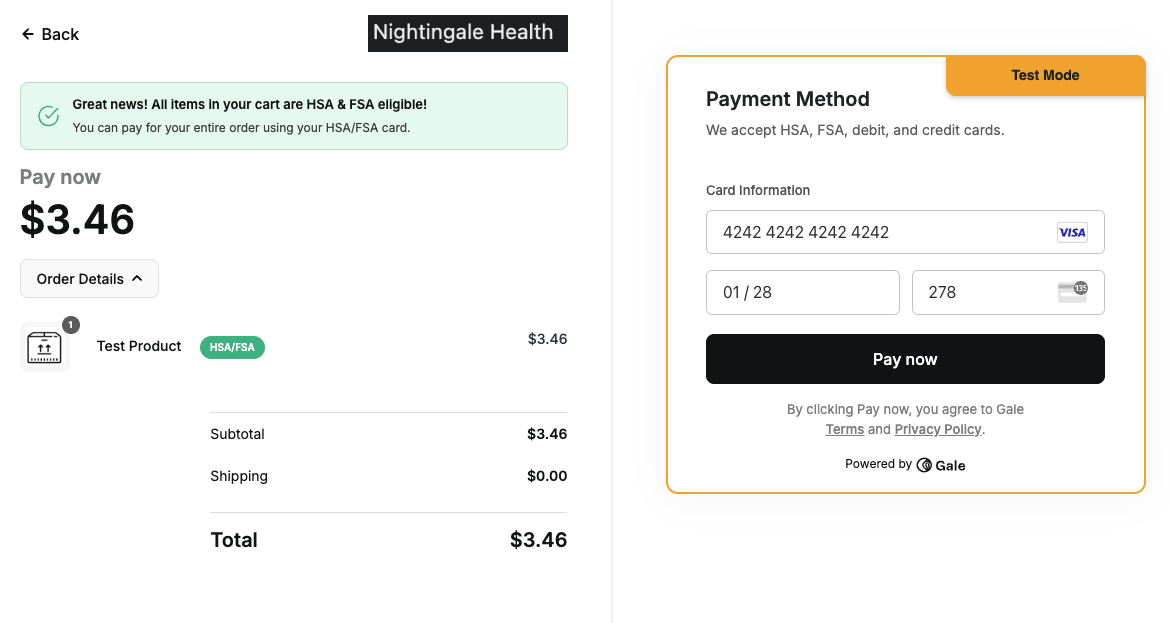 1. Verify the **order** and **payment status** in your Shopify Admin to ensure that test transaction is successful.
1. Return to the Gale Payments app in your Shopify Admin.
2. Disable **Test Mode** in the settings.
1. Verify the **order** and **payment status** in your Shopify Admin to ensure that test transaction is successful.
1. Return to the Gale Payments app in your Shopify Admin.
2. Disable **Test Mode** in the settings.
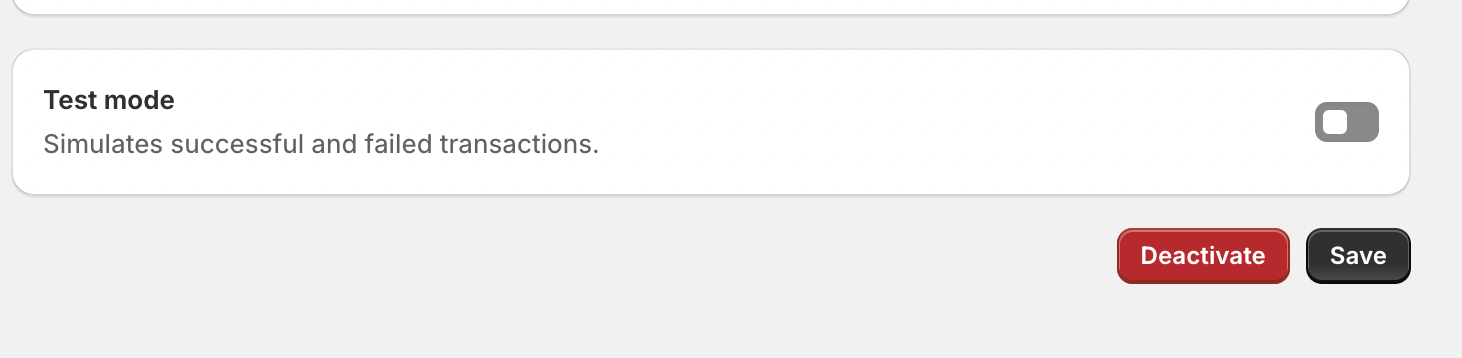 1. **Save** your changes and you are ready to accept **HSA & FSA** cards using Gale Payments.
***
## Resources
Use these cards only when **Test Mode** is enabled.
Install **Gale HSA & FSA Eligibility** app for onsite product messaging.
***
## Troubleshooting
* **App Not Visible**: Ensure the Gale Payments app is installed and activated in your Shopify Admin.
* **API Key Issues**: Double-check your API Key for accuracy.
* **Test Transactions Failing**: Confirm you are using valid [ Test Cards](/resources/test-cards).
***
## Need Help?
If you encounter any issues, contact our support team at [support@withgale.com](mailto:support@withgale.com). We're here to help!
***
By completing these steps, your Shopify store is now fully equipped to accept HSA/FSA payments with Gale Payments!
1. **Save** your changes and you are ready to accept **HSA & FSA** cards using Gale Payments.
***
## Resources
Use these cards only when **Test Mode** is enabled.
Install **Gale HSA & FSA Eligibility** app for onsite product messaging.
***
## Troubleshooting
* **App Not Visible**: Ensure the Gale Payments app is installed and activated in your Shopify Admin.
* **API Key Issues**: Double-check your API Key for accuracy.
* **Test Transactions Failing**: Confirm you are using valid [ Test Cards](/resources/test-cards).
***
## Need Help?
If you encounter any issues, contact our support team at [support@withgale.com](mailto:support@withgale.com). We're here to help!
***
By completing these steps, your Shopify store is now fully equipped to accept HSA/FSA payments with Gale Payments!