> ## Documentation Index
> Fetch the complete documentation index at: https://docs.withgale.com/llms.txt
> Use this file to discover all available pages before exploring further.
# Onsite Messaging - Shopify
This guide will walk you through the process of installing and configuring Gale Eligibility app on your Shopify store, enabling onsite messaging for HSA/FSA Eligible Products
***
## Prerequisites
Before you begin, ensure the following:
* **Shopify Admin Access** : You have administrative access to your Shopify store.
* **Gale Payments API Key** : You received your API Key during the Gale Payments onboarding process.
## Installation
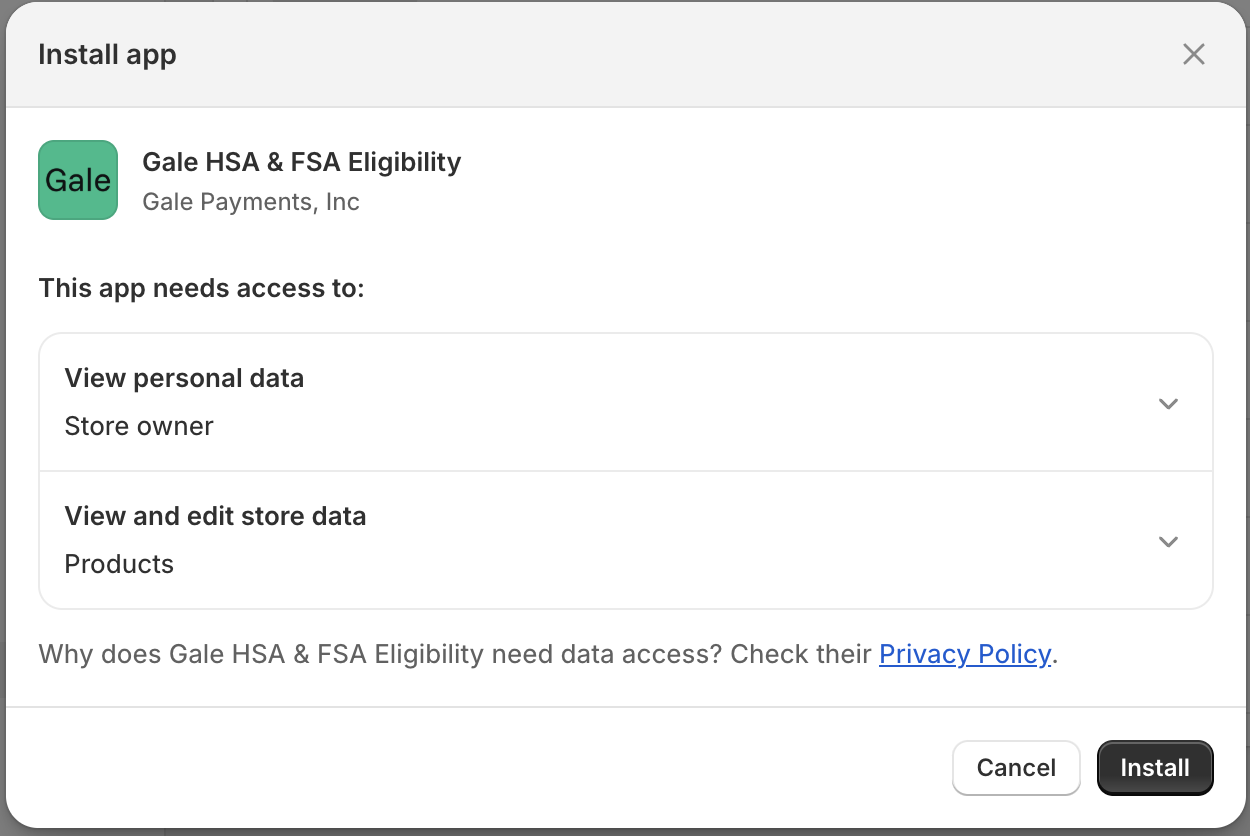
1. Install [Gale HSA & FSA Eligibility ](https://apps.shopify.com/gale-hsa-fsa-eligibility) app.
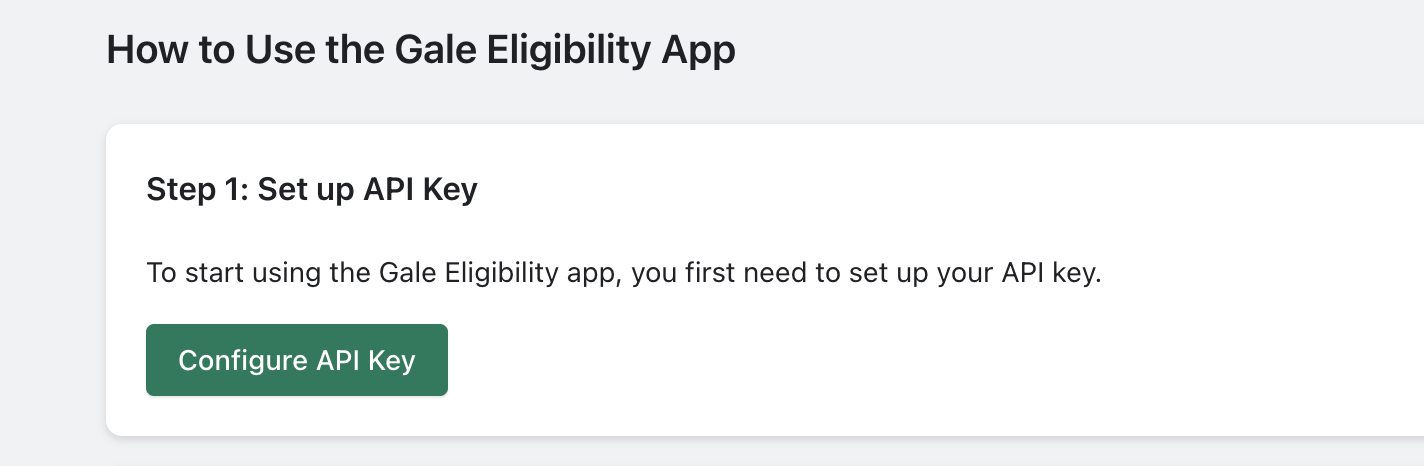
 1. Go to **Shopify Admin** > Open **Gale HSA & FSA Eligibility App**
2. Click **Configure API Key**
1. Go to **Shopify Admin** > Open **Gale HSA & FSA Eligibility App**
2. Click **Configure API Key**
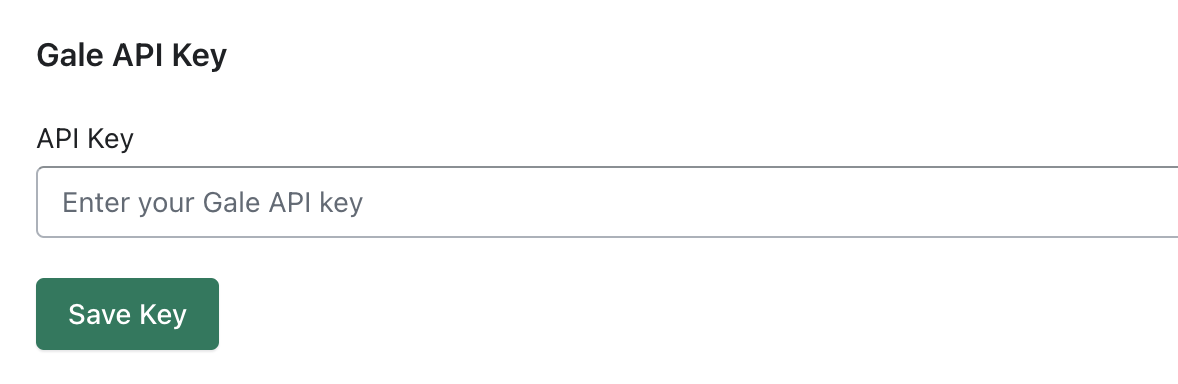
 3. Enter **Gale API Key** provided during onboarding process and Click **Save** .
 1. Click **Go to Products Edit Page** → and enter GTIN/UPC Code in the **Barcode (ISBN, UPC, GTIN, etc.)** field.
You only need to enter GTIN/UPC codes **if you are SIGIS approved and using IIAS**.\
If you're using the **LMN (Letter of Medical Necessity)** flow, this step is **not required**. Please reach out to support for more questions.
1. Click **Go to Products Edit Page** → and enter GTIN/UPC Code in the **Barcode (ISBN, UPC, GTIN, etc.)** field.
You only need to enter GTIN/UPC codes **if you are SIGIS approved and using IIAS**.\
If you're using the **LMN (Letter of Medical Necessity)** flow, this step is **not required**. Please reach out to support for more questions.
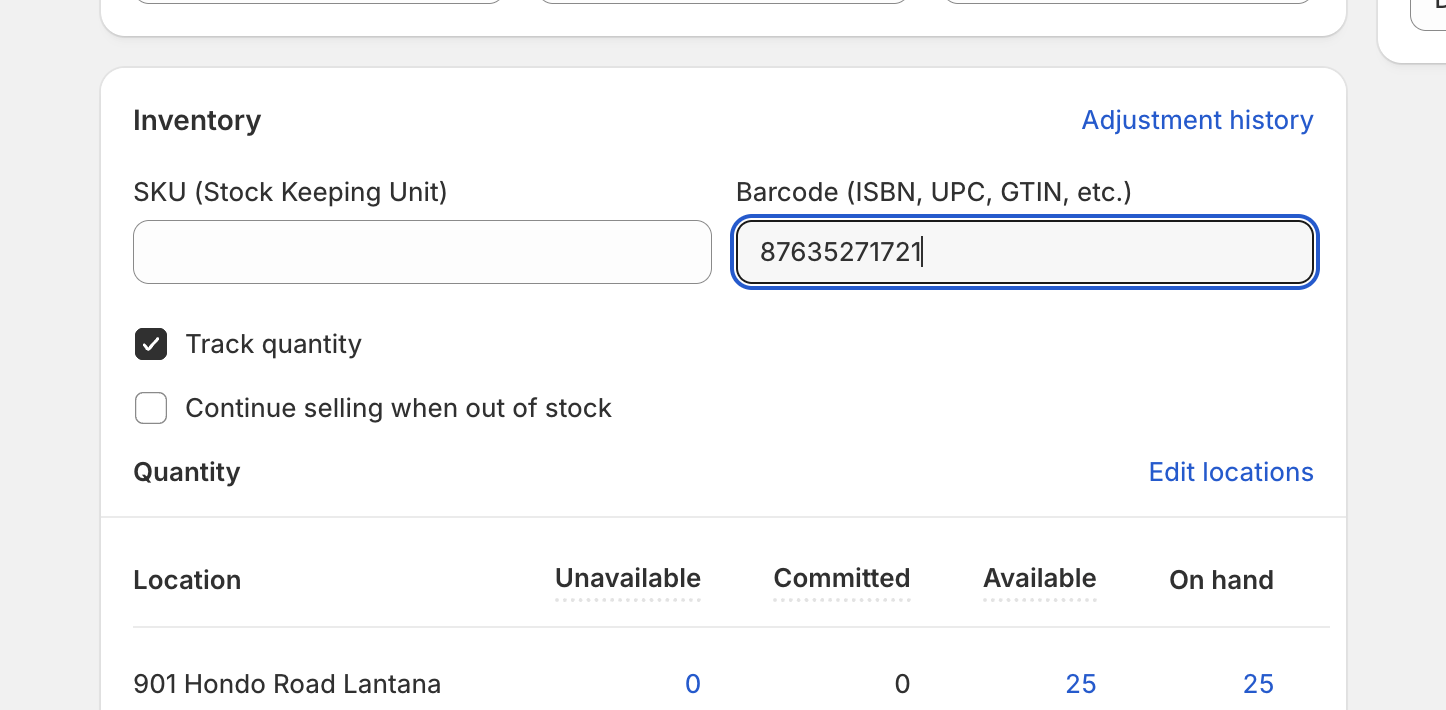 Repeat the same process for all **HSA/FSA Eligible** products and add **GTIN/UPC Codes**.
1. Open **Gale HSA & FSA Eligibility** App in store admin.
Repeat the same process for all **HSA/FSA Eligible** products and add **GTIN/UPC Codes**.
1. Open **Gale HSA & FSA Eligibility** App in store admin.
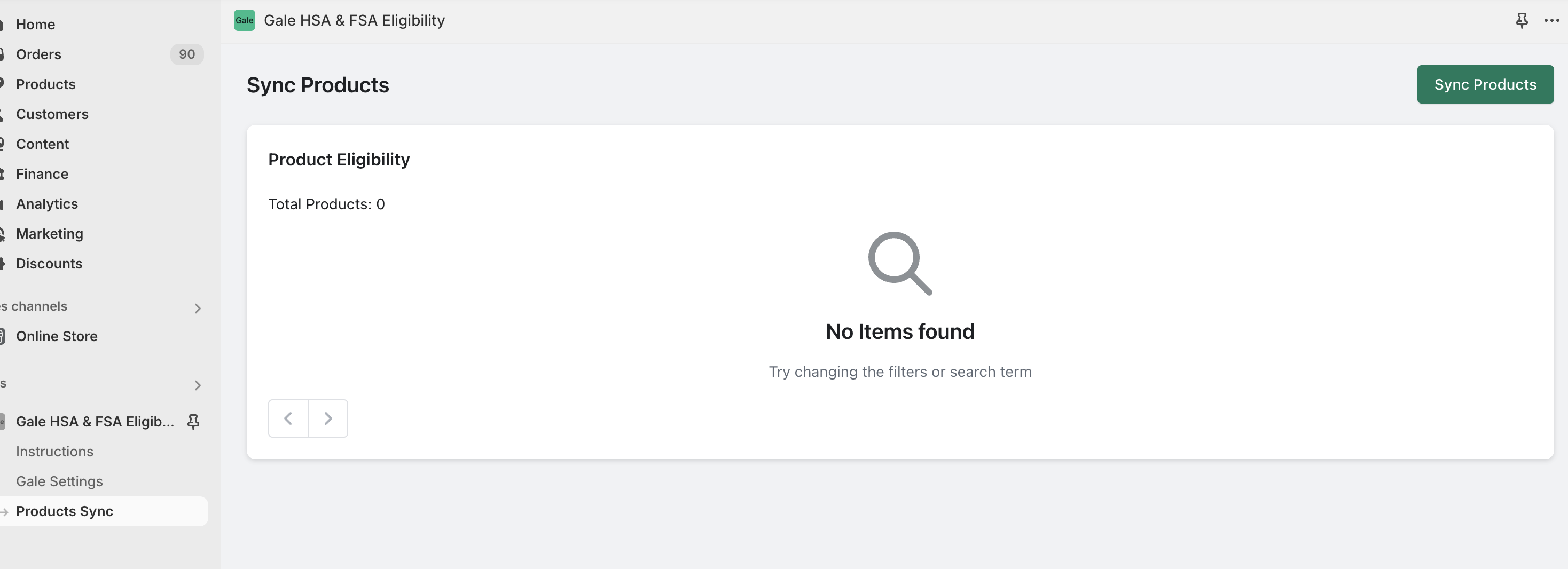
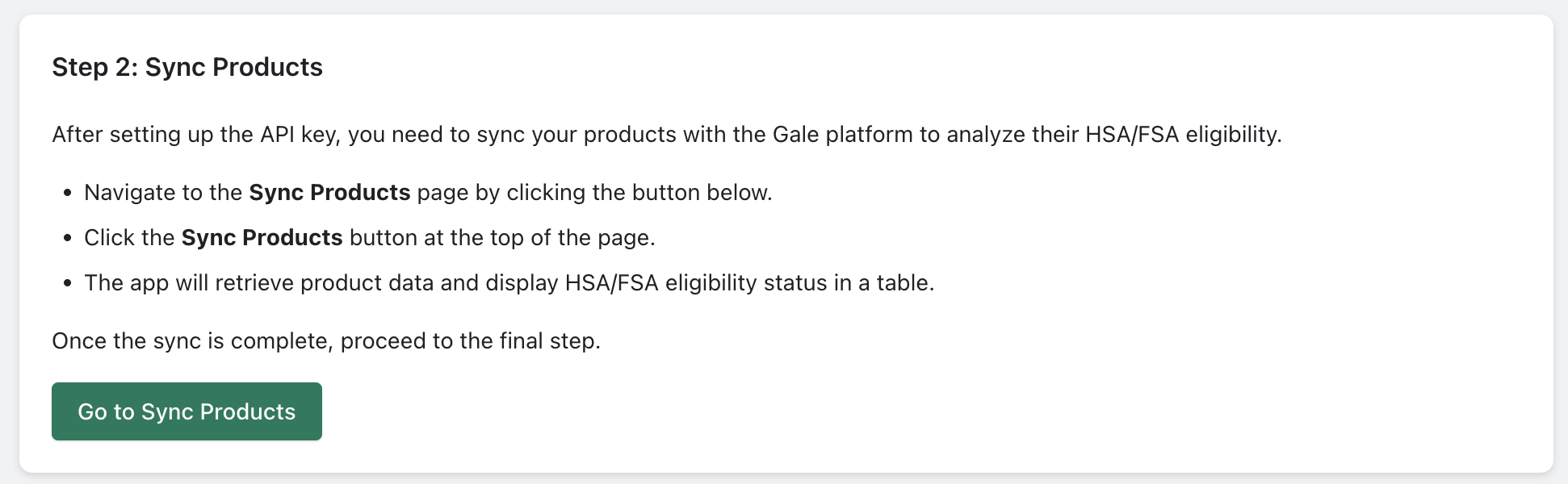 Click **Go to Sync Products** > and Hit Sync Products Button so start product sync process.
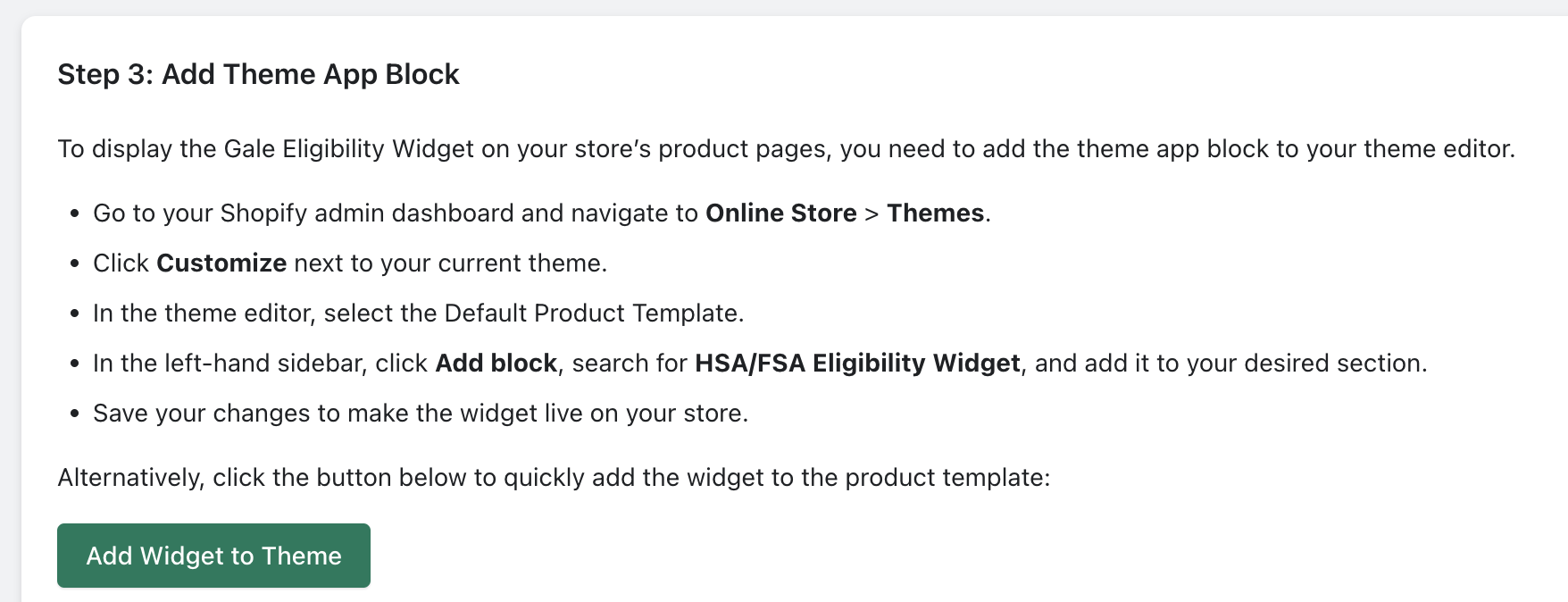
 Click Add Widget to Theme or go to your theme editor page and select Default**Product Page**Template.
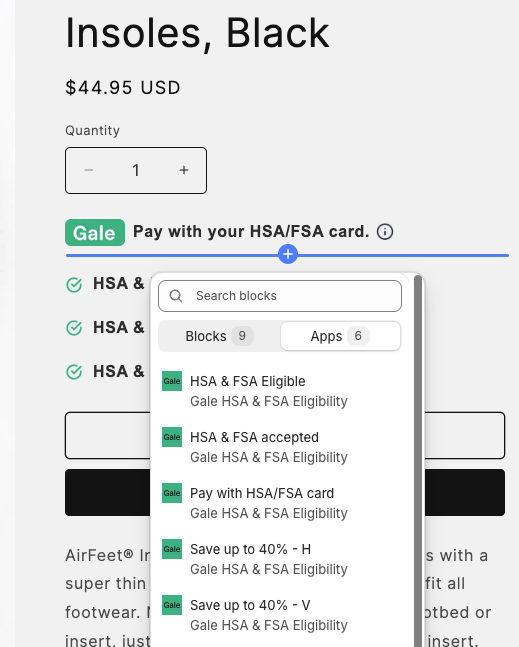
 Add a section/block under the Product Price or Product Title and choose from one of 5 Different types of Eligibility Messaging.
 ***
## Custom Code for Widgets
If you are using a custom theme , you can paste code snippets provided at approriate locations (product page template preferred.)
***
## Troubleshooting
* **Eligibility Messaging not Visible**: Ensure that you have synced products and added messaging widget to **Default Product** Template using theme editor.
* **Product not Eligible**: Ensure that you have added correct **GTIN/UPC** Codes for relevant products and have synced products after doing so.
***
## Need Help?
If you encounter any issues, contact our support team at [support@withgale.com](mailto:support@withgale.com). We're here to help!
***
**By completing these steps, you will be able to see HSA/FSA Eligibility messaging on your store for eligible products.**
***
## Custom Code for Widgets
If you are using a custom theme , you can paste code snippets provided at approriate locations (product page template preferred.)
***
## Troubleshooting
* **Eligibility Messaging not Visible**: Ensure that you have synced products and added messaging widget to **Default Product** Template using theme editor.
* **Product not Eligible**: Ensure that you have added correct **GTIN/UPC** Codes for relevant products and have synced products after doing so.
***
## Need Help?
If you encounter any issues, contact our support team at [support@withgale.com](mailto:support@withgale.com). We're here to help!
***
**By completing these steps, you will be able to see HSA/FSA Eligibility messaging on your store for eligible products.**