> ## Documentation Index
> Fetch the complete documentation index at: https://docs.withgale.com/llms.txt
> Use this file to discover all available pages before exploring further.
# Stripe Payment Elements
> Add Gale HSA/FSA as a payment option in your existing checkout using Stripe Payment Elements.
## Prerequisites
* An existing checkout built with Stripe Payment Elements, using your own
`PaymentIntent` flow.
* Stripe Dashboard access, with permission to create API keys.
* Gale Merchant Dashboard access.
## Step 1: Create your custom payment method
A **custom payment method type** is what makes Gale appear in your Payment
Element. Create one per Stripe account, in each mode.
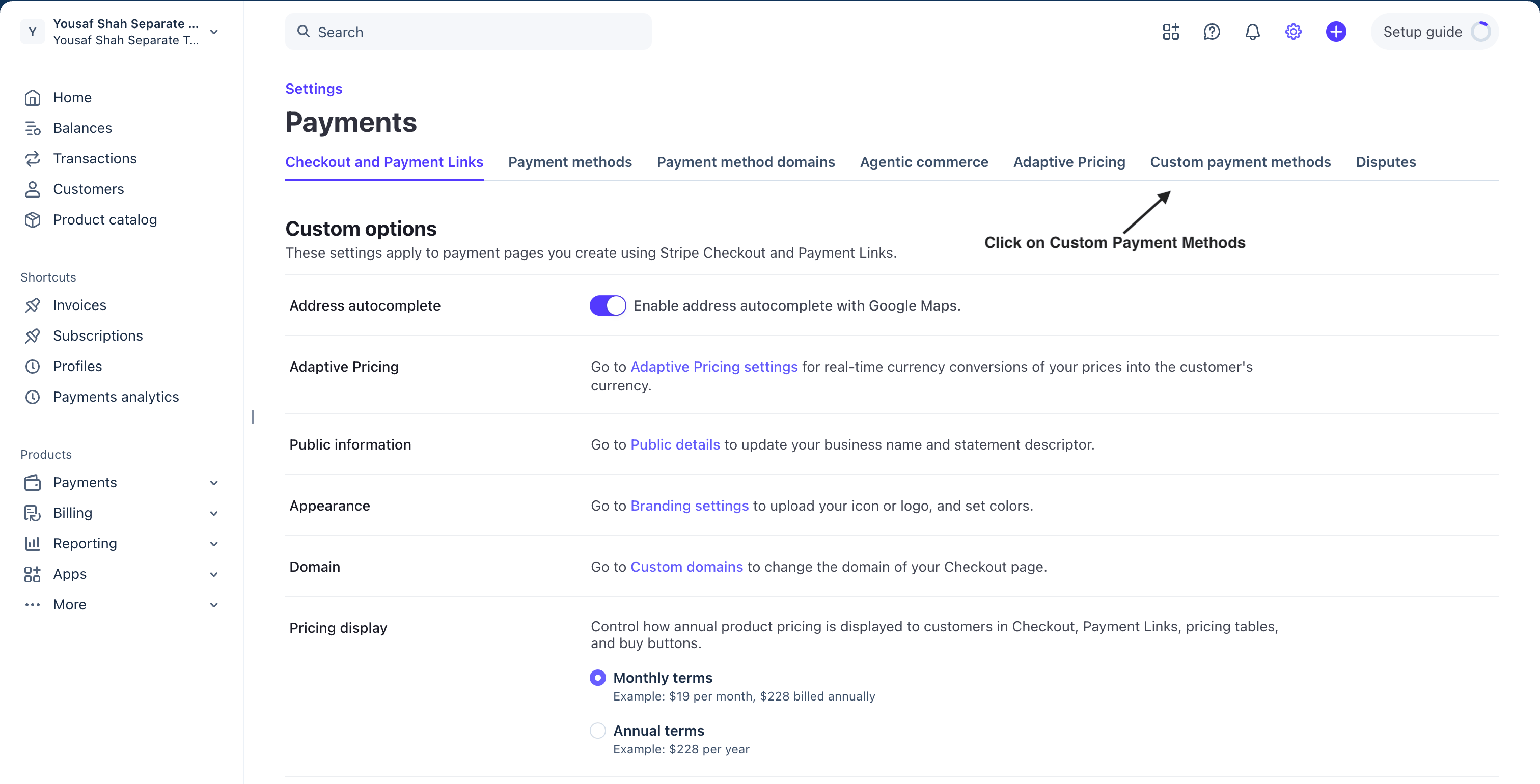
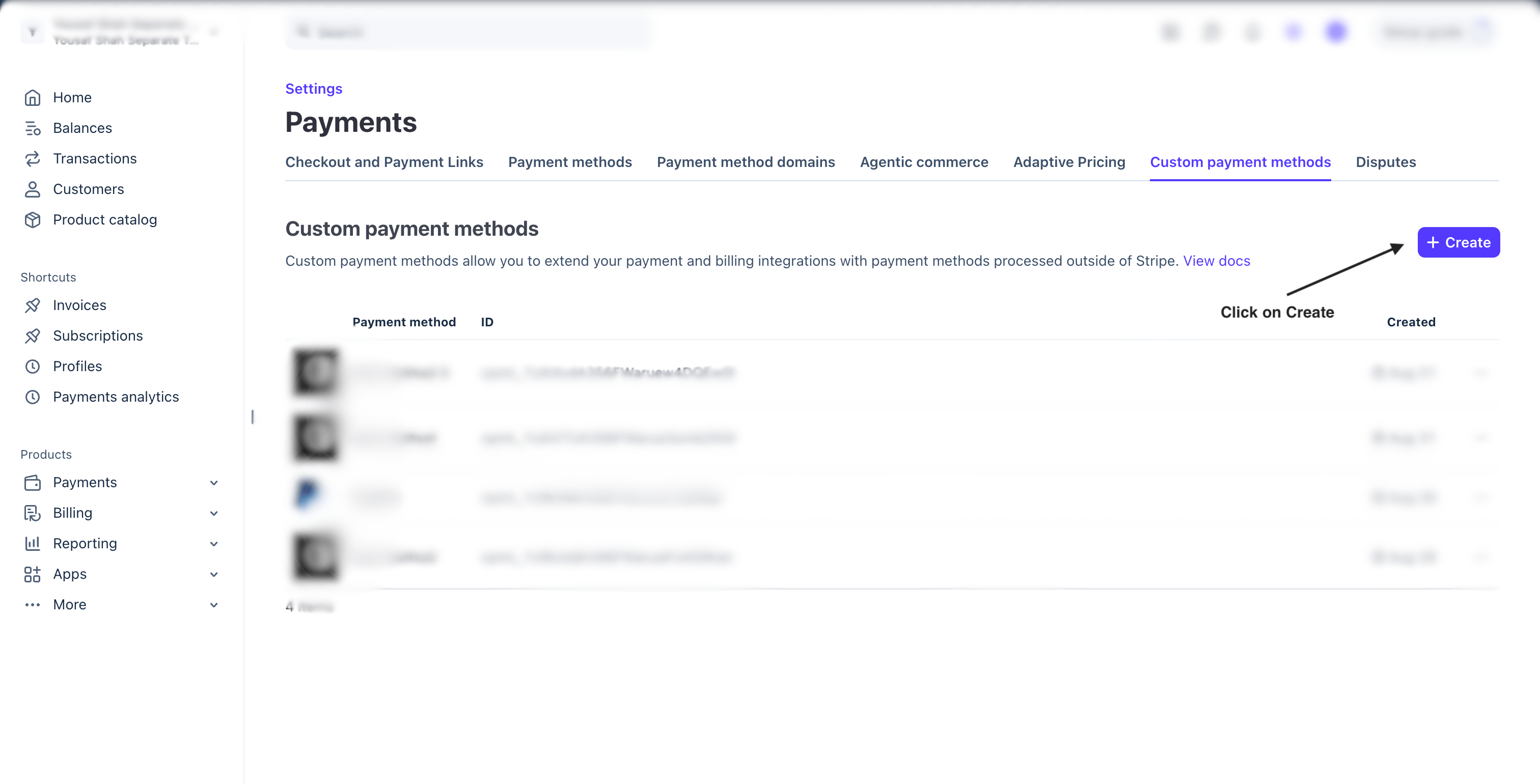
In the Stripe Dashboard, go to **Settings → Payments → Custom payment
methods** and click **Create**.
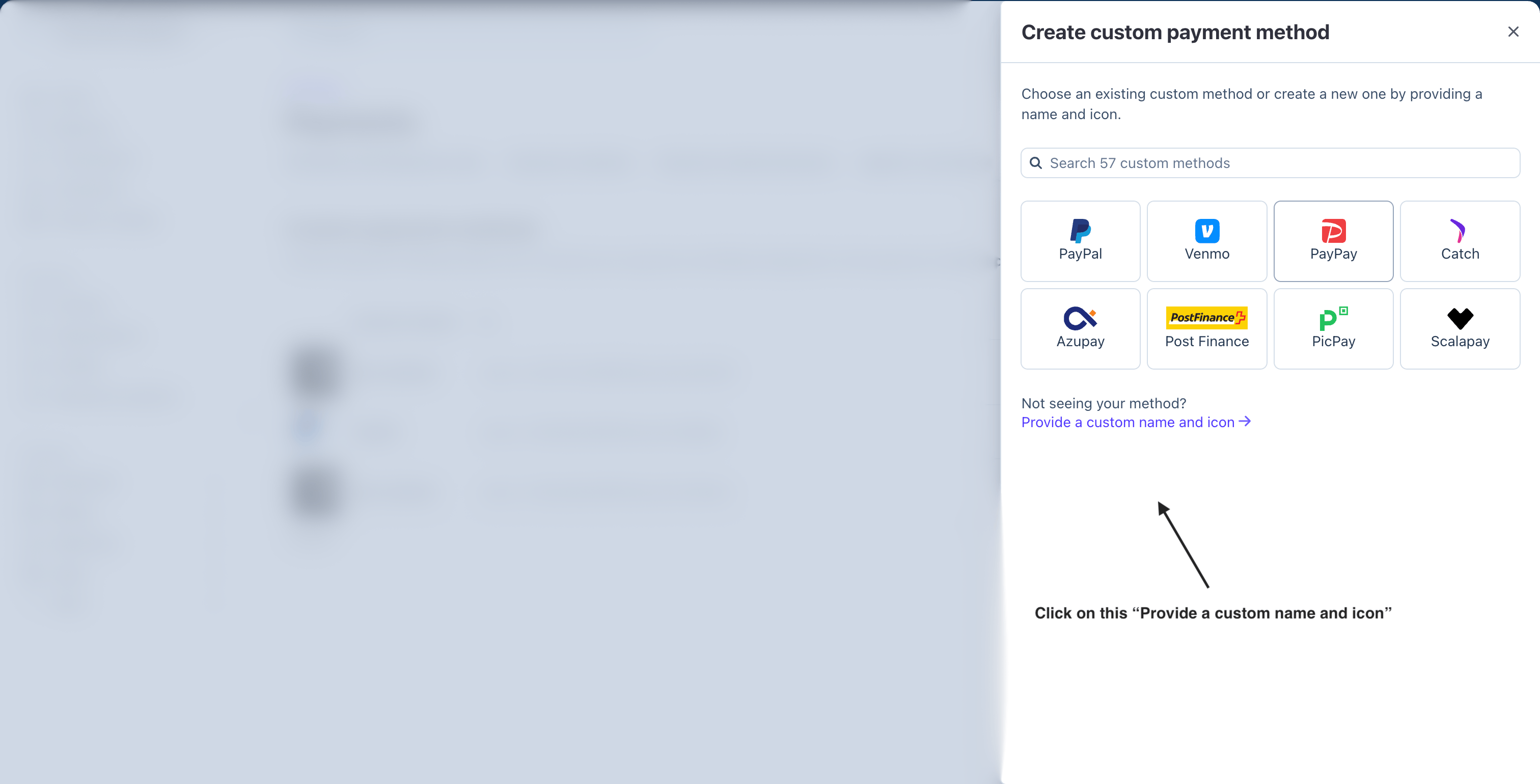
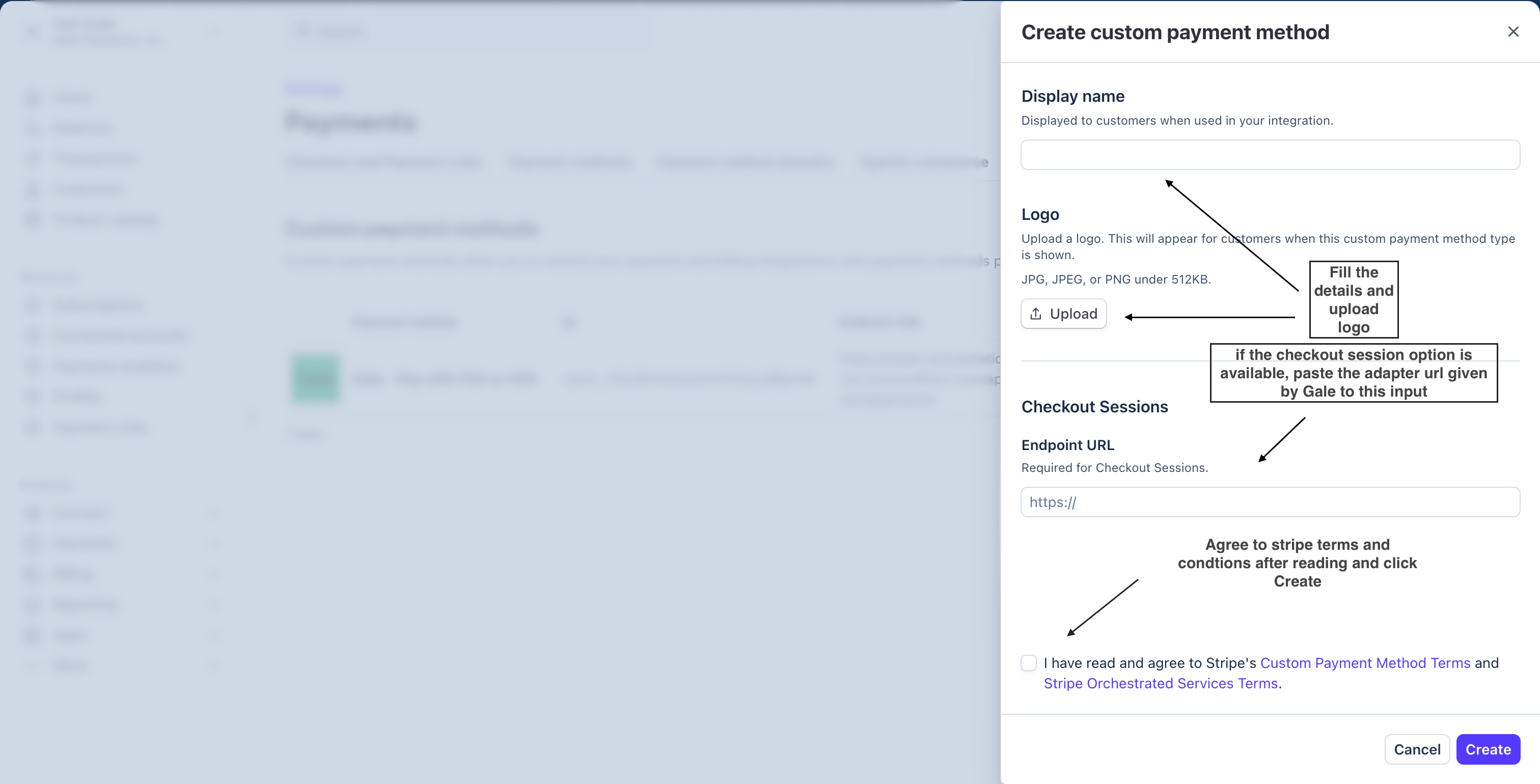
 Gale is not in Stripe's catalogue of known methods, so choose **Provide a
custom name and icon**, then fill in:
| Field | Value |
| ---------------------------------- | ------------------------------------------------------------------------------------------------------------- |
| **Display name** | `Pay with FSA/HSA` |
| **Logo** | Download the Gale logo |
| **Checkout Sessions endpoint URL** | Leave empty. It applies only to the [Stripe Checkout](/custom-payment-methods/elements-checkout-session) path |
Accept both sets of terms, then click **Create**.
Gale is not in Stripe's catalogue of known methods, so choose **Provide a
custom name and icon**, then fill in:
| Field | Value |
| ---------------------------------- | ------------------------------------------------------------------------------------------------------------- |
| **Display name** | `Pay with FSA/HSA` |
| **Logo** | Download the Gale logo |
| **Checkout Sessions endpoint URL** | Leave empty. It applies only to the [Stripe Checkout](/custom-payment-methods/elements-checkout-session) path |
Accept both sets of terms, then click **Create**.
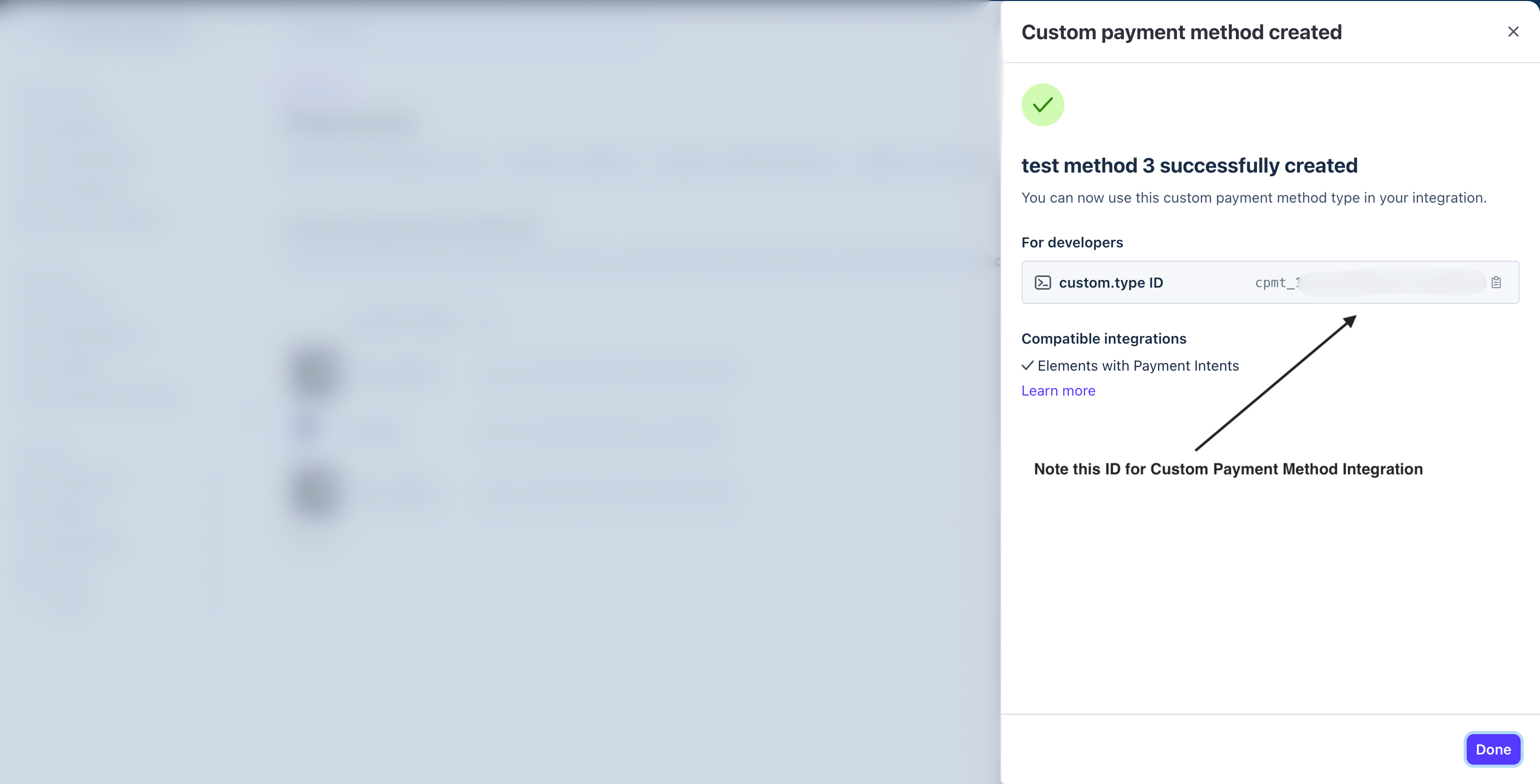
 Stripe shows the **custom.type ID**, beginning `cpmt_`. Copy it and keep it
somewhere handy — you need it in the steps that follow, and Stripe displays
it only once.
Stripe shows the **custom.type ID**, beginning `cpmt_`. Copy it and keep it
somewhere handy — you need it in the steps that follow, and Stripe displays
it only once.
 ## Step 2: Connect Stripe to Gale
Gale needs access to your Stripe account to import your catalogue and write
payment records back. Do this once per Stripe account, per mode, on the **Gale
on Stripe** page in your Gale Merchant Dashboard.
In the Stripe Dashboard, open **Developers → API keys** and create a
**restricted** key — not your standard secret key, which can move money.
Gale needs specific permissions, and Stripe will not let you edit them after
the key exists. See [Create the restricted
key](/custom-payment-methods/gale-on-stripe#create-the-restricted-key) for
the full list and the walkthrough.
Stripe reveals a restricted key once. Copy it before you navigate away.
In your Gale Merchant Dashboard, open **Integrations → Gale on Stripe** and
fill in:
| Field | Value |
| --------------------------------- | ------------------------------------------------------------------------------------------------------------- |
| **Restricted API key** | The `rk_…` key from the previous step |
| **Custom payment method type ID** | The `cpmt_…` id from Step 1 |
| **Signing secret** | Leave empty. It applies only to the [Stripe Checkout](/custom-payment-methods/elements-checkout-session) path |
Gale checks the key against Stripe when you save, so a wrong key or a
missing permission shows up immediately rather than at a shopper's first
payment.
On the same page, run **Preview** to see what would change, then **Import**
to apply it. Gale matches every line item by `product_id`, so your catalogue
has to be here before a checkout can resolve eligibility.
Turn on **Keep products in sync** and later edits in Stripe reach Gale on
their own. See [Import
products](/custom-payment-methods/gale-on-stripe#import-products).
The panel below the form should show your Stripe account ID and a tick
against every permission. A cross names the row to go and set in Stripe —
and because permissions cannot be added to an existing key, fixing one means
creating a new key.
See [Reading the connection
panel](/custom-payment-methods/gale-on-stripe#reading-the-connection-panel).
## Step 3: Add Gale to your checkout
Two changes in your frontend, and one new endpoint on your backend.
Your backend is what calls Gale, so it authenticates with your **API key**
(`glm_test_…` / `glm_live_…`). Generate one in the Gale Merchant Dashboard under
**Developer Tools → API Keys** — see [Getting your API
key](/developer-manual/authentication#getting-your-api-key). Keep it server-side;
it must never reach the browser.
Stripe's deferred Elements setup — *Collect payment details before creating an
Intent*, [Collect payment details](https://docs.stripe.com/payments/accept-a-payment-deferred?platform=web\&type=payment#collect-payment-details) —
gains one option: [`customPaymentMethods`](https://docs.stripe.com/js/elements_object/create#stripe_elements-options-customPaymentMethods),
documented for the Payment Element
[here](https://docs.stripe.com/payments/payment-element/custom-payment-methods?payment-ui=elements).
```jsx Stripe's deferred Elements theme={null}
const options = {
mode: 'payment', // or 'subscription'
amount: 1099,
currency: 'usd',
appearance: {/*...*/},
};
```
```jsx With Gale {6-9,13} theme={null}
const options = {
mode: 'payment', // or 'subscription'
amount: 1099,
currency: 'usd',
appearance: {/*...*/},
customPaymentMethods: [{
id: customPaymentMethodId, // 'cpmt_...'
options: { type: 'static', subtitle: 'Pay with your HSA/FSA card' },
}],
};
```
Custom payment methods render **last** in the Element by default. To put Gale
above the card options, pass `paymentMethodOrder: ['cpmt_...', 'card']` when
you create the Payment Element.
Stripe's handler — *Submit the payment to Stripe* on the same
[deferred-Elements page](https://docs.stripe.com/payments/accept-a-payment-deferred?platform=web\&type=payment#submit-payment) —
validates, mints the PaymentIntent, then confirms with
[`stripe.confirmPayment`](https://docs.stripe.com/js/payment_intents/confirm_payment).
Gale adds a branch *before* the intent is created, and leaves the card path
untouched.
```jsx Stripe's deferred Elements theme={null}
const handleSubmit = async (event) => {
event.preventDefault();
if (!stripe) return;
const { error: submitError } = await elements.submit();
if (submitError) { handleError(submitError); return; }
const res = await fetch('/create-intent', { method: 'POST' });
const { client_secret: clientSecret } = await res.json();
const { error } = await stripe.confirmPayment({
elements,
clientSecret,
confirmParams: { return_url: 'https://example.com/order/123/complete' },
});
if (error) handleError(error);
};
```
```jsx With Gale {5,8-17} theme={null}
const handleSubmit = async (event) => {
event.preventDefault();
if (!stripe) return;
const { error: submitError, selectedPaymentMethod } = await elements.submit();
if (submitError) { handleError(submitError); return; }
if (selectedPaymentMethod === customMethodId) {
const { redirect_url } = await fetch('/create-gale-payment', {
method: 'POST',
headers: { 'Content-Type': 'application/json' },
body: JSON.stringify({ /* cart items, customer, ... */ }),
}).then((r) => r.json());
window.location.href = redirect_url; // -> Gale hosted checkout
return; // no PaymentIntent is created
}
const res = await fetch('/create-intent', { method: 'POST' });
const { client_secret: clientSecret } = await res.json();
const { error } = await stripe.confirmPayment({
elements,
clientSecret,
confirmParams: { return_url: 'https://example.com/order/123/complete' },
});
if (error) handleError(error);
};
```
| Change | Why |
| ----------------------------------------------------- | ---------------------------------------------------------------------------------------------------------------------------- |
| Read `selectedPaymentMethod` from `elements.submit()` | Tells you which method the shopper picked. Stripe's version ignores it because there is only one path. |
| Branch when it equals your `cpmt_...` | Gale's leg is a redirect, not a Stripe confirmation. |
| `return` before `/create-intent` | No PaymentIntent should exist for a payment Gale is collecting — creating and confirming one would charge the shopper twice. |
```js theme={null}
const cart = {
reference_id: `order-${Date.now()}`,
customer: { email: 'shopper@example.com', first_name: 'Sam', last_name: 'Shopper', phone: '+15555550123' },
line_items: [
{ product_id: 'SKU-123', name: 'Blood Pressure Monitor', price: 2599, quantity: 1, currency: 'USD' },
],
shipping_info: { address_line_1: '1 Test St', city: 'Austin', state: 'TX', postal_code: '73301', country: 'US' },
metadata: {
payment_source: 'stripe_elements_cpm', // REQUIRED for this path
display_name: 'Pay with FSA/HSA',
mode: 'subscription', // omit, or 'payment', for one-time
// for a subscription cart, cadence comes from the plan — put `plan_id` on the
// line item instead; `interval` / `interval_count` here are rejected (422)
},
success_url: 'https://your-site.com/success', // HTTPS required
failure_url: 'https://your-site.com/cancel', // HTTPS required
};
const res = await fetch(`${GALE_API_URL}/api/v2/checkout`, {
method: 'POST',
headers: {
Authorization: `Bearer ${GALE_MERCHANT_API_KEY}`, // glm_test_... / glm_live_... (SECRET, server-side only)
'Content-Type': 'application/json',
Accept: 'application/json',
},
body: JSON.stringify(cart),
});
const data = await res.json();
return { redirect_url: data.data.checkout_url }; // { data: { checkout_url, checkout_id } }
```
## Step 4: Set your Gale webhook URL
Gale reports payment outcomes to your application over webhooks. Set your
endpoint under **Developer Tools → Webhooks** in your Gale dashboard, then
subscribe to the events you need:
| Event | Fires when |
| ------------------------------------ | ------------------------------------------------------------------------------------------------------------ |
| `order.completed` | Every payment leg captured — **this is settlement**, not the redirect |
| `order.failed` | The charge did not complete |
| `refund.succeeded` | A refund cleared |
| `dispute.created` / `dispute.closed` | A chargeback opened or resolved — Gale is the only source, Stripe has no `charge.*` events for a Gale charge |
| `checkout.expired` | An unpaid checkout timed out |
Subscriptions add more; see [Renewals reach you over Gale webhooks
only](#renewals-reach-you-over-gale-webhooks-only) below.
## Test vs live
Everything on the Stripe side is mode-dependent — sandbox and live each need
their own `cpmt_` id. Your Gale key carries its environment in the prefix:
`glm_test_…` or `glm_live_…`.
## One-time vs subscription
There are two `mode` settings and they're separate: the one in your `` options is Stripe's deferred-mode setting, and the one in the cart metadata is what Gale reads. Keep them consistent.
* **One-time** — omit `mode` in the cart metadata, or send `mode: 'payment'`. A single charge. Stripe receives the payment record once the charge has settled, not at the moment of authorisation, so the record reflects money that actually moved.
* **Subscription** — send `mode: 'subscription'`. See below.
## Subscriptions on this path
**Gale owns the subscription and initiates every renewal.** There is no Stripe
subscription and no Stripe invoice — Stripe receives a payment record per cycle,
for reporting only.
### Starting one
Send `mode: 'subscription'` in the cart metadata and put a `plan_id` on each
line item. The amount and cadence come from the plan, never from the cart.
```js theme={null}
metadata: { payment_source: 'stripe_elements_cpm', mode: 'subscription' },
line_items: [{ product_id: 'SKU-123', quantity: 1, plan_id: 'plan_01K9…' }]
```
* **`plan_id` is required** on every subscription line item — there is no
fallback to "the product's only plan". A plan that is unknown, archived, or
not attached to that product returns `422 PLAN_NOT_FOUND`.
* **`interval` and `interval_count` are rejected** in cart metadata. Cadence
belongs to the plan.
* **`price` is optional**, but if you send it, it must equal `amount × quantity`
from the plan.
Your plans come from your **Stripe recurring prices** — each one becomes a Gale
plan when you import or sync. Stripe stays the source of truth, so change the
price in Stripe rather than the plan in Gale. Look up ids through the [plans
API](/subscriptions/plans).
A `422 PLAN_NOT_FOUND` on a product you believe is set up is usually
Stripe-side: the price is one-time rather than recurring, the price is
inactive, or the product has not synced since you added it.
### Renewals reach you over Gale webhooks only
Gale schedules and charges every renewal, so **Gale's webhooks are the only
place a renewal is announced.** Your existing Stripe Billing handlers will never
see one — there is no Stripe subscription and no `invoice.paid`.
| Event | Fires when |
| ----------------------------- | --------------------------------------------------------------------------- |
| `subscription.created` | The first cycle is paid and the subscription starts |
| `subscription.renewed` | A renewal cycle charged successfully — **this is your renewal signal** |
| `subscription.payment_failed` | A cycle failed; retries may still follow |
| `subscription.canceled` | Billing has actually ended, not when a period-end cancellation is scheduled |
| `subscription.resumed` | A scheduled cancellation was called off |
| `subscription.disputed` | A cycle was charged back |
Without a `subscription.renewed` handler, a subscription bills correctly for
months and your system never hears about a single cycle — nothing errors,
entitlement just silently stops extending.
### Refunding a cycle
Refund the **order** the cycle produced, with `POST /v2/refunds` and your API
key — there is no per-cycle refund call. Each cycle in
`GET /v2/subscriptions/{id}` carries the `order_id` it produced. Gale reports
the refund to Stripe against the payment record.
How billing, retries, statuses, cancellation and the `/v2/subscriptions` API
work — the same on every Gale integration.
## Failure modes
* **Wrong or missing API key, or a key from the other environment** → `401`/`422` from `/api/v2/checkout`.
* **Line item missing `product_id`** → `422`. It's required on every line item. A `product_id` that Gale doesn't recognise as HSA/FSA-eligible is accepted — that item just charges on the non-eligible leg.
* **`success_url` / `failure_url` not HTTPS** → checkout creation is rejected. Use a tunnel or a local certificate in development.
* **Payment Records not enabled on your Stripe account** → the charge still completes normally; the record just won't appear in Stripe.
**Do not report a Gale charge to Stripe yourself.** Gale writes the payment
record server-side — calling a Stripe reporting endpoint for the same charge
will double it.
## Test your integration
Use your `glm_test_…` Gale key and your test-mode `cpmt_…` id. Environment
is encoded in the key prefix — nothing else about the request changes.
Load your checkout: **Pay with FSA/HSA** appears after your native methods,
with the name and logo you gave the type in Stripe.
If it does not, the problem is Stripe-side — wrong mode, wrong account, or a
`cpmt_` id that does not belong to the publishable key mounting the Element.
Also check that Adaptive Pricing is not active. No Gale setting changes this.
Select Gale and submit. Your handler should branch before Stripe's confirm
call, so no PaymentIntent is created or confirmed — if one appears in your
Stripe logs, the branch is not firing.
Your backend endpoint calls `POST /api/v2/checkout` and answers
`{ data: { checkout_url, checkout_id } }`, and the shopper lands on the
Gale-hosted card page.
Include an item whose `product_id` Gale does not recognise as eligible. It
should still charge, on the non-eligible leg, rather than being rejected.
Verify the result on your own backend before fulfilling. Then check the
order appears in your Gale dashboard under **Orders** with the
`reference_id` you sent — this is the authoritative record — and that a
payment record appears in Stripe against your custom payment method,
shortly after the charge settles rather than at authorisation.
Abandon the Gale page and confirm the shopper returns to your `failure_url`
and can pay another way, with the order left unfulfilled.
**There is no PaymentIntent and no Charge for a Gale payment.** So a
`payment_intent.succeeded` or `charge.succeeded` handler will never fire for
one, and it will not fire quietly — no error, no failed delivery, just
silence. If your fulfilment hangs off those events today, it will not fulfil
Gale orders. Confirm the outcome server-side on your own backend instead: the
shopper returns from a page Gale controls, so the browser redirect is not
something your server can verify.
## Go-live checklist
* Live Gale key (`glm_live_…`) on the live code path, and the live `cpmt_` id in the Element
* `product_id` present on every line item
* `success_url` and `failure_url` are HTTPS
* Stripe Payment Records enabled on your account, so charges appear for reporting
* Outcome verified server-side before fulfilment
* One real live transaction reconciled in both the Stripe and Gale dashboards
* Team knows refunds and disputes go through Gale, not the Stripe Dashboard
## Related resources
Every field on the cart, its rule, and the response shape.
The other path — Stripe orchestrates the charge and owns the subscription object.
How a subscription is created, billed, retried, paused and cancelled.
Where renewals, failed payments, cancellations and disputes reach you.
## Step 2: Connect Stripe to Gale
Gale needs access to your Stripe account to import your catalogue and write
payment records back. Do this once per Stripe account, per mode, on the **Gale
on Stripe** page in your Gale Merchant Dashboard.
In the Stripe Dashboard, open **Developers → API keys** and create a
**restricted** key — not your standard secret key, which can move money.
Gale needs specific permissions, and Stripe will not let you edit them after
the key exists. See [Create the restricted
key](/custom-payment-methods/gale-on-stripe#create-the-restricted-key) for
the full list and the walkthrough.
Stripe reveals a restricted key once. Copy it before you navigate away.
In your Gale Merchant Dashboard, open **Integrations → Gale on Stripe** and
fill in:
| Field | Value |
| --------------------------------- | ------------------------------------------------------------------------------------------------------------- |
| **Restricted API key** | The `rk_…` key from the previous step |
| **Custom payment method type ID** | The `cpmt_…` id from Step 1 |
| **Signing secret** | Leave empty. It applies only to the [Stripe Checkout](/custom-payment-methods/elements-checkout-session) path |
Gale checks the key against Stripe when you save, so a wrong key or a
missing permission shows up immediately rather than at a shopper's first
payment.
On the same page, run **Preview** to see what would change, then **Import**
to apply it. Gale matches every line item by `product_id`, so your catalogue
has to be here before a checkout can resolve eligibility.
Turn on **Keep products in sync** and later edits in Stripe reach Gale on
their own. See [Import
products](/custom-payment-methods/gale-on-stripe#import-products).
The panel below the form should show your Stripe account ID and a tick
against every permission. A cross names the row to go and set in Stripe —
and because permissions cannot be added to an existing key, fixing one means
creating a new key.
See [Reading the connection
panel](/custom-payment-methods/gale-on-stripe#reading-the-connection-panel).
## Step 3: Add Gale to your checkout
Two changes in your frontend, and one new endpoint on your backend.
Your backend is what calls Gale, so it authenticates with your **API key**
(`glm_test_…` / `glm_live_…`). Generate one in the Gale Merchant Dashboard under
**Developer Tools → API Keys** — see [Getting your API
key](/developer-manual/authentication#getting-your-api-key). Keep it server-side;
it must never reach the browser.
Stripe's deferred Elements setup — *Collect payment details before creating an
Intent*, [Collect payment details](https://docs.stripe.com/payments/accept-a-payment-deferred?platform=web\&type=payment#collect-payment-details) —
gains one option: [`customPaymentMethods`](https://docs.stripe.com/js/elements_object/create#stripe_elements-options-customPaymentMethods),
documented for the Payment Element
[here](https://docs.stripe.com/payments/payment-element/custom-payment-methods?payment-ui=elements).
```jsx Stripe's deferred Elements theme={null}
const options = {
mode: 'payment', // or 'subscription'
amount: 1099,
currency: 'usd',
appearance: {/*...*/},
};
```
```jsx With Gale {6-9,13} theme={null}
const options = {
mode: 'payment', // or 'subscription'
amount: 1099,
currency: 'usd',
appearance: {/*...*/},
customPaymentMethods: [{
id: customPaymentMethodId, // 'cpmt_...'
options: { type: 'static', subtitle: 'Pay with your HSA/FSA card' },
}],
};
```
Custom payment methods render **last** in the Element by default. To put Gale
above the card options, pass `paymentMethodOrder: ['cpmt_...', 'card']` when
you create the Payment Element.
Stripe's handler — *Submit the payment to Stripe* on the same
[deferred-Elements page](https://docs.stripe.com/payments/accept-a-payment-deferred?platform=web\&type=payment#submit-payment) —
validates, mints the PaymentIntent, then confirms with
[`stripe.confirmPayment`](https://docs.stripe.com/js/payment_intents/confirm_payment).
Gale adds a branch *before* the intent is created, and leaves the card path
untouched.
```jsx Stripe's deferred Elements theme={null}
const handleSubmit = async (event) => {
event.preventDefault();
if (!stripe) return;
const { error: submitError } = await elements.submit();
if (submitError) { handleError(submitError); return; }
const res = await fetch('/create-intent', { method: 'POST' });
const { client_secret: clientSecret } = await res.json();
const { error } = await stripe.confirmPayment({
elements,
clientSecret,
confirmParams: { return_url: 'https://example.com/order/123/complete' },
});
if (error) handleError(error);
};
```
```jsx With Gale {5,8-17} theme={null}
const handleSubmit = async (event) => {
event.preventDefault();
if (!stripe) return;
const { error: submitError, selectedPaymentMethod } = await elements.submit();
if (submitError) { handleError(submitError); return; }
if (selectedPaymentMethod === customMethodId) {
const { redirect_url } = await fetch('/create-gale-payment', {
method: 'POST',
headers: { 'Content-Type': 'application/json' },
body: JSON.stringify({ /* cart items, customer, ... */ }),
}).then((r) => r.json());
window.location.href = redirect_url; // -> Gale hosted checkout
return; // no PaymentIntent is created
}
const res = await fetch('/create-intent', { method: 'POST' });
const { client_secret: clientSecret } = await res.json();
const { error } = await stripe.confirmPayment({
elements,
clientSecret,
confirmParams: { return_url: 'https://example.com/order/123/complete' },
});
if (error) handleError(error);
};
```
| Change | Why |
| ----------------------------------------------------- | ---------------------------------------------------------------------------------------------------------------------------- |
| Read `selectedPaymentMethod` from `elements.submit()` | Tells you which method the shopper picked. Stripe's version ignores it because there is only one path. |
| Branch when it equals your `cpmt_...` | Gale's leg is a redirect, not a Stripe confirmation. |
| `return` before `/create-intent` | No PaymentIntent should exist for a payment Gale is collecting — creating and confirming one would charge the shopper twice. |
```js theme={null}
const cart = {
reference_id: `order-${Date.now()}`,
customer: { email: 'shopper@example.com', first_name: 'Sam', last_name: 'Shopper', phone: '+15555550123' },
line_items: [
{ product_id: 'SKU-123', name: 'Blood Pressure Monitor', price: 2599, quantity: 1, currency: 'USD' },
],
shipping_info: { address_line_1: '1 Test St', city: 'Austin', state: 'TX', postal_code: '73301', country: 'US' },
metadata: {
payment_source: 'stripe_elements_cpm', // REQUIRED for this path
display_name: 'Pay with FSA/HSA',
mode: 'subscription', // omit, or 'payment', for one-time
// for a subscription cart, cadence comes from the plan — put `plan_id` on the
// line item instead; `interval` / `interval_count` here are rejected (422)
},
success_url: 'https://your-site.com/success', // HTTPS required
failure_url: 'https://your-site.com/cancel', // HTTPS required
};
const res = await fetch(`${GALE_API_URL}/api/v2/checkout`, {
method: 'POST',
headers: {
Authorization: `Bearer ${GALE_MERCHANT_API_KEY}`, // glm_test_... / glm_live_... (SECRET, server-side only)
'Content-Type': 'application/json',
Accept: 'application/json',
},
body: JSON.stringify(cart),
});
const data = await res.json();
return { redirect_url: data.data.checkout_url }; // { data: { checkout_url, checkout_id } }
```
## Step 4: Set your Gale webhook URL
Gale reports payment outcomes to your application over webhooks. Set your
endpoint under **Developer Tools → Webhooks** in your Gale dashboard, then
subscribe to the events you need:
| Event | Fires when |
| ------------------------------------ | ------------------------------------------------------------------------------------------------------------ |
| `order.completed` | Every payment leg captured — **this is settlement**, not the redirect |
| `order.failed` | The charge did not complete |
| `refund.succeeded` | A refund cleared |
| `dispute.created` / `dispute.closed` | A chargeback opened or resolved — Gale is the only source, Stripe has no `charge.*` events for a Gale charge |
| `checkout.expired` | An unpaid checkout timed out |
Subscriptions add more; see [Renewals reach you over Gale webhooks
only](#renewals-reach-you-over-gale-webhooks-only) below.
## Test vs live
Everything on the Stripe side is mode-dependent — sandbox and live each need
their own `cpmt_` id. Your Gale key carries its environment in the prefix:
`glm_test_…` or `glm_live_…`.
## One-time vs subscription
There are two `mode` settings and they're separate: the one in your `` options is Stripe's deferred-mode setting, and the one in the cart metadata is what Gale reads. Keep them consistent.
* **One-time** — omit `mode` in the cart metadata, or send `mode: 'payment'`. A single charge. Stripe receives the payment record once the charge has settled, not at the moment of authorisation, so the record reflects money that actually moved.
* **Subscription** — send `mode: 'subscription'`. See below.
## Subscriptions on this path
**Gale owns the subscription and initiates every renewal.** There is no Stripe
subscription and no Stripe invoice — Stripe receives a payment record per cycle,
for reporting only.
### Starting one
Send `mode: 'subscription'` in the cart metadata and put a `plan_id` on each
line item. The amount and cadence come from the plan, never from the cart.
```js theme={null}
metadata: { payment_source: 'stripe_elements_cpm', mode: 'subscription' },
line_items: [{ product_id: 'SKU-123', quantity: 1, plan_id: 'plan_01K9…' }]
```
* **`plan_id` is required** on every subscription line item — there is no
fallback to "the product's only plan". A plan that is unknown, archived, or
not attached to that product returns `422 PLAN_NOT_FOUND`.
* **`interval` and `interval_count` are rejected** in cart metadata. Cadence
belongs to the plan.
* **`price` is optional**, but if you send it, it must equal `amount × quantity`
from the plan.
Your plans come from your **Stripe recurring prices** — each one becomes a Gale
plan when you import or sync. Stripe stays the source of truth, so change the
price in Stripe rather than the plan in Gale. Look up ids through the [plans
API](/subscriptions/plans).
A `422 PLAN_NOT_FOUND` on a product you believe is set up is usually
Stripe-side: the price is one-time rather than recurring, the price is
inactive, or the product has not synced since you added it.
### Renewals reach you over Gale webhooks only
Gale schedules and charges every renewal, so **Gale's webhooks are the only
place a renewal is announced.** Your existing Stripe Billing handlers will never
see one — there is no Stripe subscription and no `invoice.paid`.
| Event | Fires when |
| ----------------------------- | --------------------------------------------------------------------------- |
| `subscription.created` | The first cycle is paid and the subscription starts |
| `subscription.renewed` | A renewal cycle charged successfully — **this is your renewal signal** |
| `subscription.payment_failed` | A cycle failed; retries may still follow |
| `subscription.canceled` | Billing has actually ended, not when a period-end cancellation is scheduled |
| `subscription.resumed` | A scheduled cancellation was called off |
| `subscription.disputed` | A cycle was charged back |
Without a `subscription.renewed` handler, a subscription bills correctly for
months and your system never hears about a single cycle — nothing errors,
entitlement just silently stops extending.
### Refunding a cycle
Refund the **order** the cycle produced, with `POST /v2/refunds` and your API
key — there is no per-cycle refund call. Each cycle in
`GET /v2/subscriptions/{id}` carries the `order_id` it produced. Gale reports
the refund to Stripe against the payment record.
How billing, retries, statuses, cancellation and the `/v2/subscriptions` API
work — the same on every Gale integration.
## Failure modes
* **Wrong or missing API key, or a key from the other environment** → `401`/`422` from `/api/v2/checkout`.
* **Line item missing `product_id`** → `422`. It's required on every line item. A `product_id` that Gale doesn't recognise as HSA/FSA-eligible is accepted — that item just charges on the non-eligible leg.
* **`success_url` / `failure_url` not HTTPS** → checkout creation is rejected. Use a tunnel or a local certificate in development.
* **Payment Records not enabled on your Stripe account** → the charge still completes normally; the record just won't appear in Stripe.
**Do not report a Gale charge to Stripe yourself.** Gale writes the payment
record server-side — calling a Stripe reporting endpoint for the same charge
will double it.
## Test your integration
Use your `glm_test_…` Gale key and your test-mode `cpmt_…` id. Environment
is encoded in the key prefix — nothing else about the request changes.
Load your checkout: **Pay with FSA/HSA** appears after your native methods,
with the name and logo you gave the type in Stripe.
If it does not, the problem is Stripe-side — wrong mode, wrong account, or a
`cpmt_` id that does not belong to the publishable key mounting the Element.
Also check that Adaptive Pricing is not active. No Gale setting changes this.
Select Gale and submit. Your handler should branch before Stripe's confirm
call, so no PaymentIntent is created or confirmed — if one appears in your
Stripe logs, the branch is not firing.
Your backend endpoint calls `POST /api/v2/checkout` and answers
`{ data: { checkout_url, checkout_id } }`, and the shopper lands on the
Gale-hosted card page.
Include an item whose `product_id` Gale does not recognise as eligible. It
should still charge, on the non-eligible leg, rather than being rejected.
Verify the result on your own backend before fulfilling. Then check the
order appears in your Gale dashboard under **Orders** with the
`reference_id` you sent — this is the authoritative record — and that a
payment record appears in Stripe against your custom payment method,
shortly after the charge settles rather than at authorisation.
Abandon the Gale page and confirm the shopper returns to your `failure_url`
and can pay another way, with the order left unfulfilled.
**There is no PaymentIntent and no Charge for a Gale payment.** So a
`payment_intent.succeeded` or `charge.succeeded` handler will never fire for
one, and it will not fire quietly — no error, no failed delivery, just
silence. If your fulfilment hangs off those events today, it will not fulfil
Gale orders. Confirm the outcome server-side on your own backend instead: the
shopper returns from a page Gale controls, so the browser redirect is not
something your server can verify.
## Go-live checklist
* Live Gale key (`glm_live_…`) on the live code path, and the live `cpmt_` id in the Element
* `product_id` present on every line item
* `success_url` and `failure_url` are HTTPS
* Stripe Payment Records enabled on your account, so charges appear for reporting
* Outcome verified server-side before fulfilment
* One real live transaction reconciled in both the Stripe and Gale dashboards
* Team knows refunds and disputes go through Gale, not the Stripe Dashboard
## Related resources
Every field on the cart, its rule, and the response shape.
The other path — Stripe orchestrates the charge and owns the subscription object.
How a subscription is created, billed, retried, paused and cancelled.
Where renewals, failed payments, cancellations and disputes reach you.