> ## Documentation Index
> Fetch the complete documentation index at: https://docs.withgale.com/llms.txt
> Use this file to discover all available pages before exploring further.
# Stripe Checkout
> Add Gale HSA/FSA as a payment option in your existing checkout using Stripe Checkout Sessions.
## Prerequisites
* An existing checkout built with Stripe **Checkout Sessions**.
* Access to Stripe's **merchant-instructed orchestration preview**, which Stripe
grants per account. Ask Stripe if you do not have it.
* Stripe Dashboard access, with permission to create API keys.
* Gale Merchant Dashboard access.
* Your **adapter URL** from Gale. You paste it into Stripe while creating the
payment method, so get it before you start.
Your backend never calls Gale on this path, so you do **not** need a Gale API
key — only your ordinary Stripe secret and publishable keys.
## Step 1: Create your custom payment method
A **custom payment method type** is what makes Gale appear in your Payment
Element. Create one per Stripe account, in each mode.
**Have your adapter URL ready before you start.** You paste it into the type
while creating it, and that is what produces the signing secret. Gale issues
it during onboarding — ask your Gale contact if you do not have it.
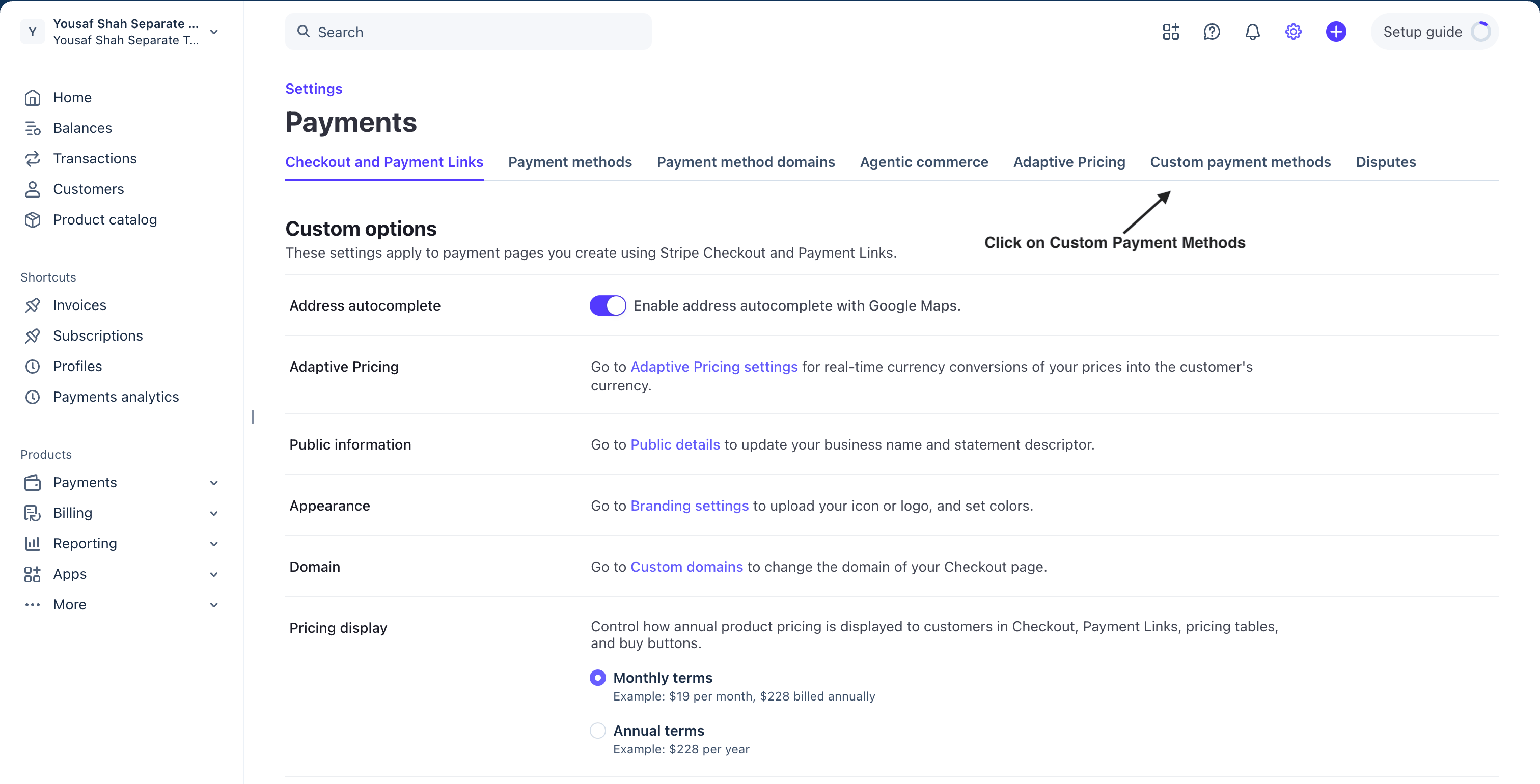
In the Stripe Dashboard, go to **Settings → Payments → Custom payment
methods** and click **Create**.
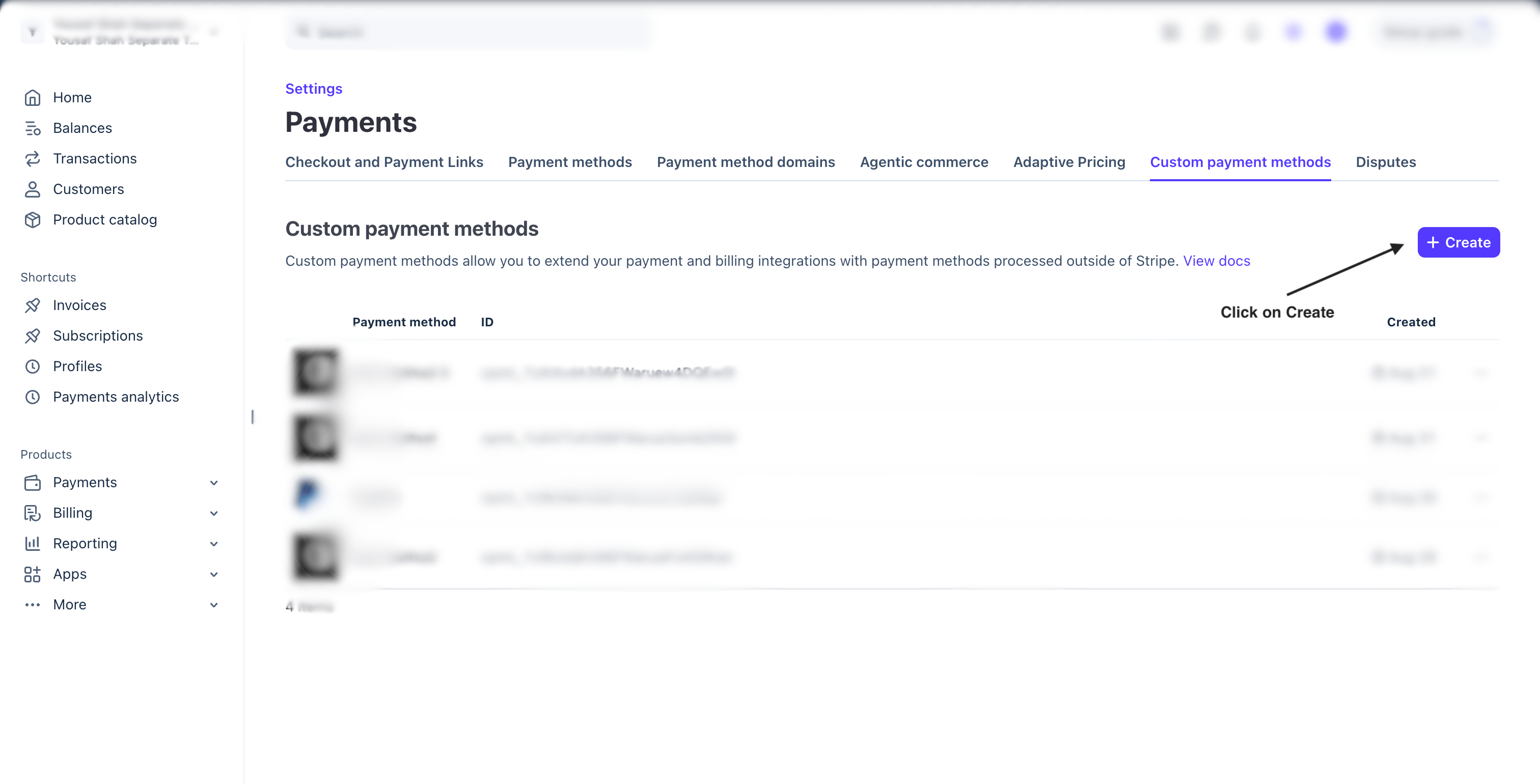 Gale is not in Stripe's catalogue of known methods, so choose **Provide a
custom name and icon**.
Gale is not in Stripe's catalogue of known methods, so choose **Provide a
custom name and icon**.
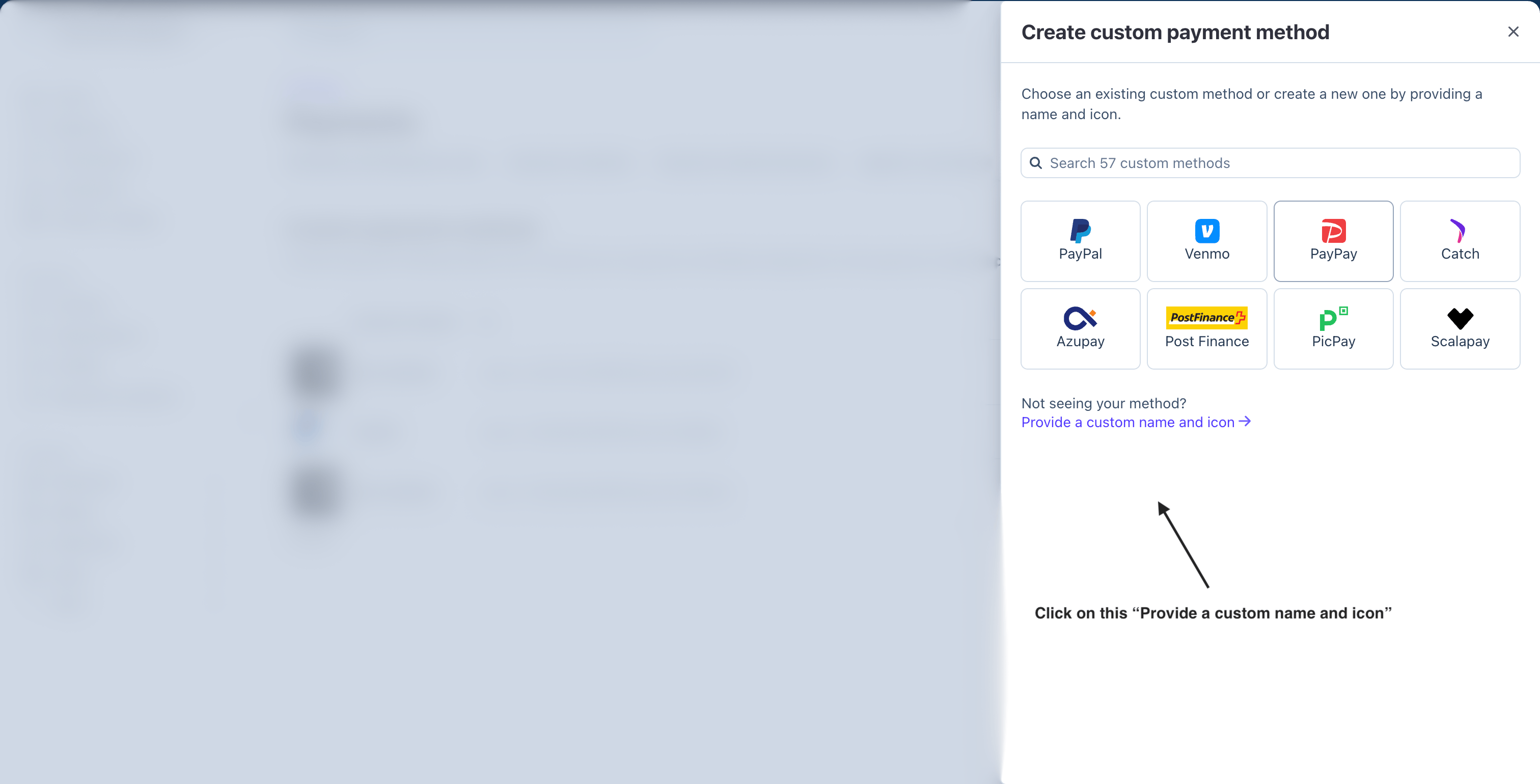 | Field | Value |
| ------------------------------------------- | ----------------------------------------------------------------------------------------------- |
| **Display name** | `Pay with FSA/HSA` |
| **Logo** | Download the Gale logo |
| **Endpoint URL**, under *Checkout Sessions* | The adapter URL Gale gave you. Stripe calls it to collect every payment, including each renewal |
Accept both sets of terms, then click **Create**.
**The Checkout Sessions section only appears if Stripe has enabled it for
your account.** It is not on by default. Without it you cannot complete
this integration — contact Stripe and ask them to enable custom payment
methods with Checkout Sessions. The [Stripe Payment
Elements](/custom-payment-methods/elements-payment-intent) path needs
nothing extra and works without it.
| Field | Value |
| ------------------------------------------- | ----------------------------------------------------------------------------------------------- |
| **Display name** | `Pay with FSA/HSA` |
| **Logo** | Download the Gale logo |
| **Endpoint URL**, under *Checkout Sessions* | The adapter URL Gale gave you. Stripe calls it to collect every payment, including each renewal |
Accept both sets of terms, then click **Create**.
**The Checkout Sessions section only appears if Stripe has enabled it for
your account.** It is not on by default. Without it you cannot complete
this integration — contact Stripe and ask them to enable custom payment
methods with Checkout Sessions. The [Stripe Payment
Elements](/custom-payment-methods/elements-payment-intent) path needs
nothing extra and works without it.
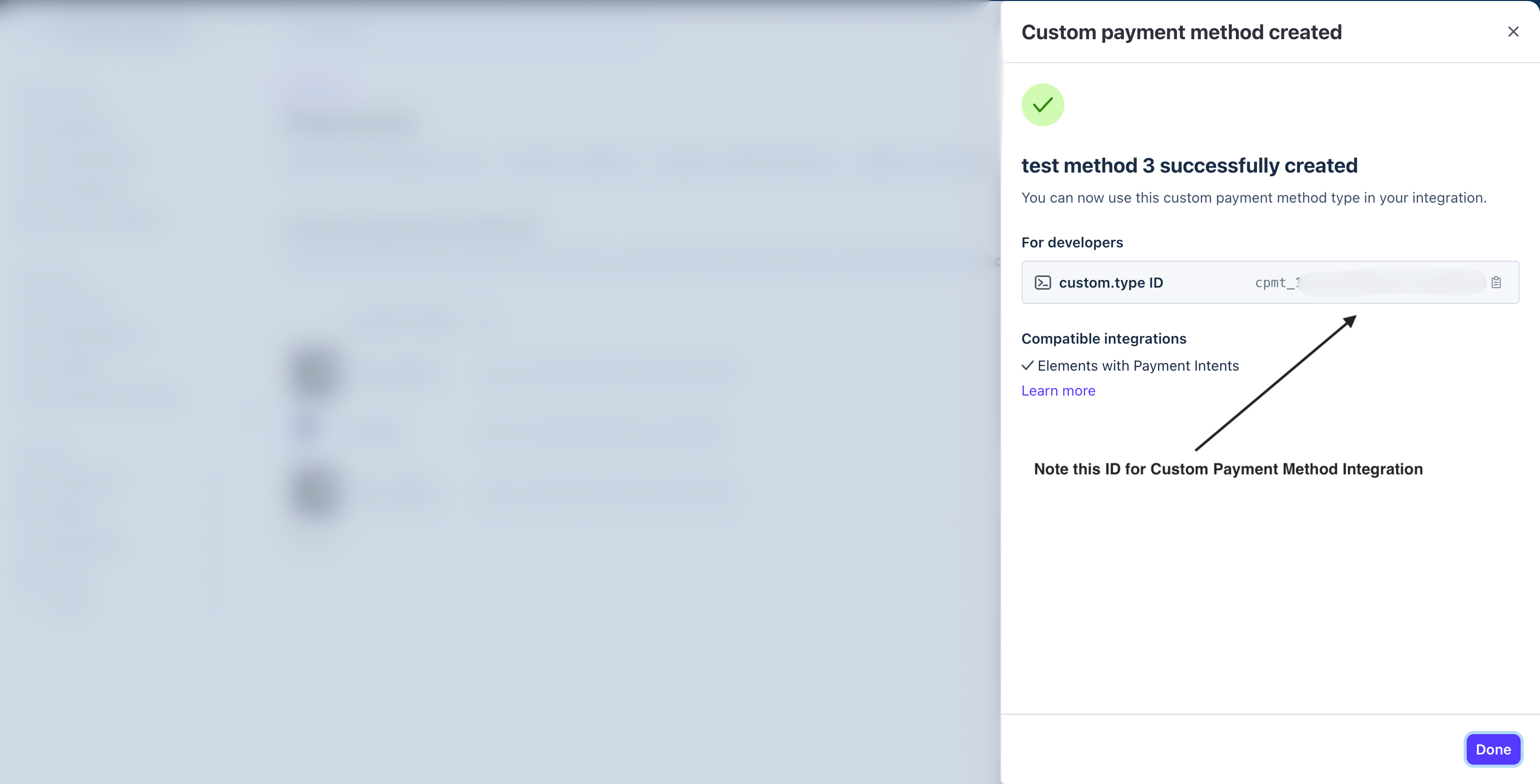
 Stripe shows the **custom.type ID**, beginning `cpmt_`. Copy it and keep it
somewhere handy — you need it in the steps that follow, and Stripe displays
it only once.
Stripe shows the **custom.type ID**, beginning `cpmt_`. Copy it and keep it
somewhere handy — you need it in the steps that follow, and Stripe displays
it only once.
 ### Copy your signing secret
Stripe **signs every call** it makes to Gale's adapter URL. The signing secret is
how Gale checks a call genuinely came from Stripe — without it, Gale cannot tell
a real payment from a forged one, so it turns every call away.
In the Stripe Dashboard, click **Developers**, then **Webhooks**.
You do not create this one — registering the custom payment method created it
for you, pointing at the adapter URL you entered.
Look for a destination named **SOPI (cpmt\_…)**, carrying the same `cpmt_` id
you just copied. That name is the reliable way to spot it: on an account with
several destinations, matching by name beats reading URLs.
Open that destination. **Signing secret** is in the details panel on the
right — click the eye to reveal it and copy it. It starts with `whsec_`.
### Copy your signing secret
Stripe **signs every call** it makes to Gale's adapter URL. The signing secret is
how Gale checks a call genuinely came from Stripe — without it, Gale cannot tell
a real payment from a forged one, so it turns every call away.
In the Stripe Dashboard, click **Developers**, then **Webhooks**.
You do not create this one — registering the custom payment method created it
for you, pointing at the adapter URL you entered.
Look for a destination named **SOPI (cpmt\_…)**, carrying the same `cpmt_` id
you just copied. That name is the reliable way to spot it: on an account with
several destinations, matching by name beats reading URLs.
Open that destination. **Signing secret** is in the details panel on the
right — click the eye to reveal it and copy it. It starts with `whsec_`.
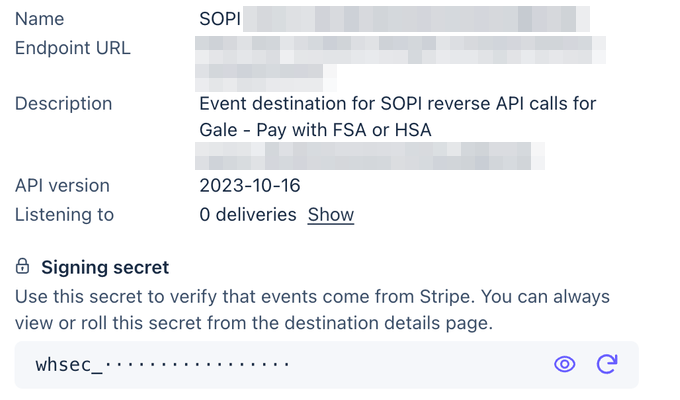 **You can come back for it.** Stripe lets you view or roll this secret from
the destination details page at any time, so a lost signing secret is not a
lost payment method — reveal it again, or roll it and paste the new value
into Gale.
This is not the same value as your restricted key. Both are secrets and
both are pasted into Gale, but a key starting `rk_` in the signing secret
box — or the other way round — will be rejected.
The destination will show **0 deliveries** and no event subscriptions, and
that is correct. It exists to sign Stripe's calls *to your adapter*, not to
send you events — which is why this path still needs your own Stripe
webhook for `checkout.session.*`, below.
You also need a **restricted API key** for Gale. That value, the `cpmt_` id and
the signing secret all get pasted into the **Gale on Stripe** page in your Gale
dashboard. See [Gale on
Stripe](/custom-payment-methods/gale-on-stripe#create-the-restricted-key).
No Gale credentials appear anywhere in the code on this page. Stripe calls
Gale's adapter URL and authenticates itself — your backend never calls Gale,
so there is no Gale API key on this path.
## Step 2: Connect Stripe to Gale
Gale needs access to your Stripe account to import your catalogue and report
payment outcomes back. Do this once per Stripe account, per mode, on the **Gale
on Stripe** page in your Gale Merchant Dashboard.
In the Stripe Dashboard, open **Developers → API keys** and create a
**restricted** key — not your standard secret key, which can move money.
Gale needs specific permissions, and Stripe will not let you edit them after
the key exists. See [Create the restricted
key](/custom-payment-methods/gale-on-stripe#create-the-restricted-key) for
the full list.
Stripe reveals a restricted key once. Copy it before you navigate away.
In your Gale Merchant Dashboard, open **Integrations → Gale on Stripe** and
fill in:
| Field | Value |
| --------------------------------- | ------------------------------------- |
| **Restricted API key** | The `rk_…` key from the previous step |
| **Custom payment method type ID** | The `cpmt_…` id from Step 1 |
| **Signing secret** | The `whsec_…` value from Step 1 |
Gale checks the key against Stripe when you save, so a wrong key or a
missing permission shows up immediately rather than at a shopper's first
payment.
On the same page, run **Preview** to see what would change, then **Import**
to apply it. Gale resolves eligibility per line item against this catalogue.
Turn on **Keep products in sync** and later edits in Stripe reach Gale on
their own. See [Import
products](/custom-payment-methods/gale-on-stripe#import-products).
The panel below the form should show your Stripe account ID, a tick against
every permission, and the signing secret as `set`. A cross names the row to
go and set in Stripe — and because permissions cannot be added to an
existing key, fixing one means creating a new key.
See [Reading the connection
panel](/custom-payment-methods/gale-on-stripe#reading-the-connection-panel).
## Step 3: Add Gale to your checkout
Four changes to the Checkout Session your backend creates, and one beta flag
on the client. Your card path is untouched.
Stripe's *Create a Checkout Session* step in
[Build a custom checkout page](https://docs.stripe.com/payments/quickstart)
([`POST /v1/checkout/sessions`](https://docs.stripe.com/api/checkout/sessions/create)),
with four changes.
```js Stripe's quickstart theme={null}
const stripe = require('stripe')('sk_test_...');
const session = await stripe.checkout.sessions.create({
ui_mode: 'elements',
customer_email: 'customer@example.com',
shipping_address_collection: { allowed_countries: ['US', 'CA'] },
return_url: 'https://example.com/return?session_id={CHECKOUT_SESSION_ID}',
line_items: [{
price_data: {
currency: 'usd',
unit_amount: 2599,
product_data: { name: 'Allergy Relief' },
},
quantity: 1,
}],
});
```
```js With Gale {1-3,6,10,19} theme={null}
// 1. The orchestration preview API version.
const stripe = require('stripe')('sk_test_...', {
apiVersion: '2025-03-31.basil;checkout_merchant_instructed_orchestration_preview=v1;',
});
const session = await stripe.checkout.sessions.create({
ui_mode: 'custom', // 2. see the note below
customer_email: 'customer@example.com',
shipping_address_collection: { allowed_countries: ['US', 'CA'] },
return_url: 'https://example.com/return?session_id={CHECKOUT_SESSION_ID}',
// 3. List your Gale CPM alongside your native methods.
custom_payment_method_types: ['cpmt_...'],
line_items: [{
price_data: {
currency: 'usd',
unit_amount: 2599,
product_data: {
name: 'Allergy Relief',
// 4. Tag the SKU Gale knows this product by.
metadata: { merchant_product_id: 'SKU-123' },
},
},
quantity: 1,
}],
});
```
| Change | Why |
| ----------------------------------------------------------------------- | ------------------------------------------------------------------------------------------------------------------------------------------------------------------------------------------------------------------------------------------------------------------------------------------------------------------------------------------------------------------------- |
| `apiVersion: '…checkout_merchant_instructed_orchestration_preview=v1;'` | Gates the preview. Omit it and Stripe rejects `custom_payment_method_types` outright. |
| `ui_mode: 'custom'` instead of `'elements'` | See the note below — they are the same UI mode under two names, tied to your API version. |
| `custom_payment_method_types: ['cpmt_…']` | Lists the Gale option in the Payment Element. Your other payment methods are unaffected. |
| `product_data.metadata.merchant_product_id` | How Gale resolves HSA/FSA eligibility per line. Optional — without it Gale falls back to the Stripe product id, which is what your catalogue import keyed on, so matching still works. Set it to key on your own SKU instead. An item Gale matches to *nothing* still charges, on the non-eligible leg, so the shopper's HSA card pays less of the basket than it should. |
**`ui_mode: 'elements'` fails on this path.** Stripe's quickstart uses
`elements`, which requires a 2026 API version, while the orchestration
preview above pins a 2025 one. Sending `elements` with the preview version
returns:
```
Invalid ui_mode: elements. In order to use ui_mode: elements,
you must upgrade to Stripe API version 2026-03-2...
```
Use `custom`. It is the same Elements-driven mode under the older name.
`shipping_address_collection` is not optional here the way it is in Stripe's
quickstart. Gale requires a shipping address on the cart and can only use
what the session exposes — collect it here, with a `ShippingAddressElement`,
or by passing `shippingAddress` to `confirm()`. Without one, checkout
creation fails and the payment is declined with no shopper-visible reason.
Stripe's *Initialize Checkout* and *Fetch a Checkout Session client secret*
steps, with **one** change: the beta flag on `loadStripe`. Nothing else is
Gale-specific — the CPM renders in the Payment Element because the session
lists it, and `confirm()` is the same call a card payment makes.
```js Stripe's quickstart theme={null}
const stripe = loadStripe('pk_test_...');
```
```js With Gale {2} theme={null}
const stripe = loadStripe('pk_test_...', {
betas: ['checkout_merchant_instructed_orchestration_preview_v1'],
});
```
Without that flag the session loads, the card methods render, and the Gale
option silently does not appear — which looks like a misconfigured CPM rather
than a missing beta.
The rest is Stripe's code verbatim:
```jsx theme={null}
// Note the /checkout subpath — the Checkout Sessions bindings are not exported
// from the package root. Requires @stripe/react-stripe-js v6+.
import {
CheckoutElementsProvider,
PaymentElement,
useCheckoutElements,
} from '@stripe/react-stripe-js/checkout';
import { loadStripe } from '@stripe/stripe-js';
const stripe = loadStripe('pk_test_...', {
betas: ['checkout_merchant_instructed_orchestration_preview_v1'],
});
function CheckoutForm() {
// Returns a {loading | success | error} result — the SDK, and with it
// confirm(), lives on result.checkout once it resolves.
const result = useCheckoutElements();
if (result.type === 'loading') return
**You can come back for it.** Stripe lets you view or roll this secret from
the destination details page at any time, so a lost signing secret is not a
lost payment method — reveal it again, or roll it and paste the new value
into Gale.
This is not the same value as your restricted key. Both are secrets and
both are pasted into Gale, but a key starting `rk_` in the signing secret
box — or the other way round — will be rejected.
The destination will show **0 deliveries** and no event subscriptions, and
that is correct. It exists to sign Stripe's calls *to your adapter*, not to
send you events — which is why this path still needs your own Stripe
webhook for `checkout.session.*`, below.
You also need a **restricted API key** for Gale. That value, the `cpmt_` id and
the signing secret all get pasted into the **Gale on Stripe** page in your Gale
dashboard. See [Gale on
Stripe](/custom-payment-methods/gale-on-stripe#create-the-restricted-key).
No Gale credentials appear anywhere in the code on this page. Stripe calls
Gale's adapter URL and authenticates itself — your backend never calls Gale,
so there is no Gale API key on this path.
## Step 2: Connect Stripe to Gale
Gale needs access to your Stripe account to import your catalogue and report
payment outcomes back. Do this once per Stripe account, per mode, on the **Gale
on Stripe** page in your Gale Merchant Dashboard.
In the Stripe Dashboard, open **Developers → API keys** and create a
**restricted** key — not your standard secret key, which can move money.
Gale needs specific permissions, and Stripe will not let you edit them after
the key exists. See [Create the restricted
key](/custom-payment-methods/gale-on-stripe#create-the-restricted-key) for
the full list.
Stripe reveals a restricted key once. Copy it before you navigate away.
In your Gale Merchant Dashboard, open **Integrations → Gale on Stripe** and
fill in:
| Field | Value |
| --------------------------------- | ------------------------------------- |
| **Restricted API key** | The `rk_…` key from the previous step |
| **Custom payment method type ID** | The `cpmt_…` id from Step 1 |
| **Signing secret** | The `whsec_…` value from Step 1 |
Gale checks the key against Stripe when you save, so a wrong key or a
missing permission shows up immediately rather than at a shopper's first
payment.
On the same page, run **Preview** to see what would change, then **Import**
to apply it. Gale resolves eligibility per line item against this catalogue.
Turn on **Keep products in sync** and later edits in Stripe reach Gale on
their own. See [Import
products](/custom-payment-methods/gale-on-stripe#import-products).
The panel below the form should show your Stripe account ID, a tick against
every permission, and the signing secret as `set`. A cross names the row to
go and set in Stripe — and because permissions cannot be added to an
existing key, fixing one means creating a new key.
See [Reading the connection
panel](/custom-payment-methods/gale-on-stripe#reading-the-connection-panel).
## Step 3: Add Gale to your checkout
Four changes to the Checkout Session your backend creates, and one beta flag
on the client. Your card path is untouched.
Stripe's *Create a Checkout Session* step in
[Build a custom checkout page](https://docs.stripe.com/payments/quickstart)
([`POST /v1/checkout/sessions`](https://docs.stripe.com/api/checkout/sessions/create)),
with four changes.
```js Stripe's quickstart theme={null}
const stripe = require('stripe')('sk_test_...');
const session = await stripe.checkout.sessions.create({
ui_mode: 'elements',
customer_email: 'customer@example.com',
shipping_address_collection: { allowed_countries: ['US', 'CA'] },
return_url: 'https://example.com/return?session_id={CHECKOUT_SESSION_ID}',
line_items: [{
price_data: {
currency: 'usd',
unit_amount: 2599,
product_data: { name: 'Allergy Relief' },
},
quantity: 1,
}],
});
```
```js With Gale {1-3,6,10,19} theme={null}
// 1. The orchestration preview API version.
const stripe = require('stripe')('sk_test_...', {
apiVersion: '2025-03-31.basil;checkout_merchant_instructed_orchestration_preview=v1;',
});
const session = await stripe.checkout.sessions.create({
ui_mode: 'custom', // 2. see the note below
customer_email: 'customer@example.com',
shipping_address_collection: { allowed_countries: ['US', 'CA'] },
return_url: 'https://example.com/return?session_id={CHECKOUT_SESSION_ID}',
// 3. List your Gale CPM alongside your native methods.
custom_payment_method_types: ['cpmt_...'],
line_items: [{
price_data: {
currency: 'usd',
unit_amount: 2599,
product_data: {
name: 'Allergy Relief',
// 4. Tag the SKU Gale knows this product by.
metadata: { merchant_product_id: 'SKU-123' },
},
},
quantity: 1,
}],
});
```
| Change | Why |
| ----------------------------------------------------------------------- | ------------------------------------------------------------------------------------------------------------------------------------------------------------------------------------------------------------------------------------------------------------------------------------------------------------------------------------------------------------------------- |
| `apiVersion: '…checkout_merchant_instructed_orchestration_preview=v1;'` | Gates the preview. Omit it and Stripe rejects `custom_payment_method_types` outright. |
| `ui_mode: 'custom'` instead of `'elements'` | See the note below — they are the same UI mode under two names, tied to your API version. |
| `custom_payment_method_types: ['cpmt_…']` | Lists the Gale option in the Payment Element. Your other payment methods are unaffected. |
| `product_data.metadata.merchant_product_id` | How Gale resolves HSA/FSA eligibility per line. Optional — without it Gale falls back to the Stripe product id, which is what your catalogue import keyed on, so matching still works. Set it to key on your own SKU instead. An item Gale matches to *nothing* still charges, on the non-eligible leg, so the shopper's HSA card pays less of the basket than it should. |
**`ui_mode: 'elements'` fails on this path.** Stripe's quickstart uses
`elements`, which requires a 2026 API version, while the orchestration
preview above pins a 2025 one. Sending `elements` with the preview version
returns:
```
Invalid ui_mode: elements. In order to use ui_mode: elements,
you must upgrade to Stripe API version 2026-03-2...
```
Use `custom`. It is the same Elements-driven mode under the older name.
`shipping_address_collection` is not optional here the way it is in Stripe's
quickstart. Gale requires a shipping address on the cart and can only use
what the session exposes — collect it here, with a `ShippingAddressElement`,
or by passing `shippingAddress` to `confirm()`. Without one, checkout
creation fails and the payment is declined with no shopper-visible reason.
Stripe's *Initialize Checkout* and *Fetch a Checkout Session client secret*
steps, with **one** change: the beta flag on `loadStripe`. Nothing else is
Gale-specific — the CPM renders in the Payment Element because the session
lists it, and `confirm()` is the same call a card payment makes.
```js Stripe's quickstart theme={null}
const stripe = loadStripe('pk_test_...');
```
```js With Gale {2} theme={null}
const stripe = loadStripe('pk_test_...', {
betas: ['checkout_merchant_instructed_orchestration_preview_v1'],
});
```
Without that flag the session loads, the card methods render, and the Gale
option silently does not appear — which looks like a misconfigured CPM rather
than a missing beta.
The rest is Stripe's code verbatim:
```jsx theme={null}
// Note the /checkout subpath — the Checkout Sessions bindings are not exported
// from the package root. Requires @stripe/react-stripe-js v6+.
import {
CheckoutElementsProvider,
PaymentElement,
useCheckoutElements,
} from '@stripe/react-stripe-js/checkout';
import { loadStripe } from '@stripe/stripe-js';
const stripe = loadStripe('pk_test_...', {
betas: ['checkout_merchant_instructed_orchestration_preview_v1'],
});
function CheckoutForm() {
// Returns a {loading | success | error} result — the SDK, and with it
// confirm(), lives on result.checkout once it resolves.
const result = useCheckoutElements();
if (result.type === 'loading') return Loading…
;
if (result.type === 'error') return {result.error.message}
;
const { checkout } = result;
return (
);
}
export default function Page({ clientSecret }) {
// clientSecret may be a string or a promise resolving to one.
return (
);
}
```
Older examples show
`CheckoutProvider`, `options={{ fetchClientSecret }}` and a `useCheckout()`
that returns the SDK directly. That was the v3-era API. On
`@stripe/react-stripe-js` v6 those imports do not exist at the package root,
and calling `confirm()` on the hook's return value throws
`checkout.confirm is not a function` — the actions are one level down, on
`result.checkout`. `useCheckout()` still works but is deprecated since
v6.3.0; prefer `useCheckoutElements()` inside `CheckoutElementsProvider`.
`ui_mode` also supports `embedded` (Stripe's embedded component) and `hosted` (redirect to a Stripe-hosted page, with no Elements code at all). The Gale CPM appears in all three — Stripe lists Checkout as supported for custom payment methods, with one exception: it does not work when `approval_method` is `manual`.
## Step 4: Set your Gale webhook URL
Stripe reports the session and the renewals; Gale reports settlement, refunds
and disputes. You need both. Set your endpoint under **Developer Tools →
Webhooks** in your Gale dashboard.
| You get from Stripe | You get only from Gale |
| ---------------------------------------------------- | --------------------------------------------------- |
| `checkout.session.completed` — the shopper finished | `order.completed` — **the money actually captured** |
| `invoice.paid` / `invoice.payment_failed` — renewals | `refund.succeeded` |
| `customer.subscription.*` | `dispute.created` / `dispute.closed` |
Gale settled the charge, so no Stripe Charge object exists — `charge.succeeded`,
`charge.refunded` and `charge.dispute.*` never fire, and never will. Refunds
and disputes reach you through Gale or not at all.
## One-time vs subscription
The session's `mode` decides which you get. Gale charges and settles the money either way — the difference is what Stripe keeps on its side.
* **One-time** — `mode: 'payment'`. Stripe orchestrates a single charge, Gale collects it on the shopper's HSA/FSA card, and Stripe records the outcome against the session. No Stripe subscription exists, and no Stripe Invoice is created automatically — listen for `checkout.session.completed` if you need one.
* **Subscription** — `mode: 'subscription'` with a recurring Stripe price. Stripe creates a real subscription object and drives the billing schedule from there. See below.
`setup` mode is not available: a custom payment method can't save a card without charging it.
## Recurring billing on this path
**This path does not use Gale subscription plans.** The cadence lives on your
recurring **Stripe price**, and Stripe owns the subscription object and the
schedule. Gale plans apply to the [Stripe Payment
Elements](/custom-payment-methods/elements-payment-intent) path, where Gale is
the biller.
Create the session with `mode: 'subscription'` and Stripe creates a real subscription object. From then on:
* **Stripe initiates every renewal — Gale takes the payment.** Stripe holds the subscription and decides when a cycle is due. On each billing date it calls Gale off-session, and **Gale charges the shopper's stored HSA/FSA card and settles the money**. Stripe never charges the card itself, on the first cycle or any renewal, and Gale does not schedule renewals on this path.
* **Stripe cannot update the card.** Stripe has no card-update mechanism for a custom payment method in any case — the Customer Portal can't replace the card behind a Gale CPM subscription, and there's no Stripe-side flow that can. Card updates go through Gale.
* **Stripe's record is for reconciliation.** The charge outcome Stripe holds against the subscription is a reporting and reconciliation record of money Gale moved.
### Renewals arrive on your existing Stripe webhooks
Because Stripe owns the subscription and initiates each cycle, **a renewal on
this path is an ordinary Stripe Billing event.** Your existing `invoice.paid`
and `invoice.payment_failed` handlers keep working, and there is nothing new to
subscribe to.
| Subscribe to | For |
| -------------------------------------------- | ------------------------------ |
| `invoice.paid` | A cycle billed successfully |
| `invoice.payment_failed` | A cycle failed |
| `customer.subscription.updated` / `.deleted` | Plan changes and cancellations |
Gale does **not** emit `subscription.renewed` or `subscription.payment_failed`
for a subscription on this path. Those come from Gale's own renewal engine,
and a Stripe-scheduled subscription never enters it — so a Gale webhook
endpoint is optional here, where on the [Stripe Payment
Elements](/custom-payment-methods/elements-payment-intent#renewals-reach-you-over-gale-webhooks-only)
path it is the only way renewals reach you at all.
Your `charge.*` and `payment_intent.*` handlers still receive nothing, on
renewals as on the first cycle. The Billing events survive because a real
Stripe Invoice exists; the payment events do not, because no Charge does.
### Changing the card
Stripe has no card-update mechanism for a custom payment method, so card updates
run through Gale: `POST /v2/subscriptions/{id}/card-update-link`. See
[Subscriptions](/subscriptions/overview#when-a-card-fails).
### Refunding a cycle
**You refund in Stripe, not in Gale.** Stripe calls Gale's adapter with a refund
request, Gale returns the money on the shopper's HSA/FSA card, and nothing is
reported back — Stripe initiated it, so it already has the outcome.
There is nothing for you to build. You do **not** call `POST /v2/refunds` on this
path, and you do not need a Gale API key for it.
This is the mirror image of the [Stripe Payment
Elements](/custom-payment-methods/elements-payment-intent#refunding-a-cycle)
path, where you refund through Gale and Gale reports the refund to Stripe. Who
initiates decides who reports.
## Test vs live
Everything on the Stripe side is mode-dependent — sandbox and live each need
their own `cpmt_` id, their own adapter URL registration, and their own signing
secret.
## Outcomes you'll see in Stripe
Stripe accepts four outcome codes for a custom payment method, and Gale maps refusals onto them:
| Code | When |
| ---------------------------------------------- | -------------------------------------------------- |
| `payment_method_customer_decline` | Shopper cancelled or abandoned checkout |
| `payment_method_provider_decline` | Definitive refusal |
| `payment_method_provider_authentication_error` | Authentication (3DS) failure |
| `payment_method_provider_unknown_outcome` | Timeout, network error, or otherwise indeterminate |
An indeterminate result is never reported as a final failure — Gale waits for a confirmed outcome before reporting, so you won't see a charge marked failed that later settles.
## Test your integration
Use your Stripe test keys and the test-mode `cpmt_…` you created. Test and
live are separate registrations.
Load your checkout: **Pay with FSA/HSA** appears alongside your native
methods.
If it does not, the problem is Stripe-side — the session was created without
the `cpmt_` in `custom_payment_method_types`, the preview API version or beta
flag is missing, the id belongs to the other mode, or Adaptive Pricing is in
play.
Complete a checkout. Stripe calls the adapter URL and Gale answers with a
redirect to its hosted card page.
A call rejected on signature means the signing secret in **Gale on Stripe**
does not match that destination, or was pasted from the wrong mode.
`checkout.session.completed` fires on your ordinary Stripe webhook. On
`mode: 'subscription'` a real Stripe Subscription and Invoice exist from this
point; on `mode: 'payment'` neither does.
Include an item whose SKU metadata Gale cannot match. It should charge on the
non-eligible leg rather than blocking the order.
Cancel a checkout and confirm the session shows
`payment_method_customer_decline`. See [Outcomes you'll see in
Stripe](#outcomes-youll-see-in-stripe) for the full set.
Verify the outcome on the session. Then check the order appears in your Gale
dashboard under **Orders** — this is the authoritative record — and that a
payment record appears in Stripe against your custom payment method.
**`checkout.session.completed` means the shopper finished, not that funds
settled.** There is no PaymentIntent and no Charge on this path, so
`payment_intent.succeeded` and `charge.succeeded` never fire — silently, with
no error and no failed delivery. Settlement lives on the payment record, which
Gale reports after capture. Fulfilling on the session-completed event alone
means fulfilling on an authorisation that can still fail.
## Go-live checklist
* Live-mode `cpmt_…` you created on the live code path — not the test registration
* Adapter URL entered as the *Checkout Sessions* endpoint on the live custom payment method
* Live signing secret pasted into Gale, and the restricted key verified
* SKU metadata present on live **products** (or their Stripe product ids imported into Gale)
* `approval_method` is not `manual` — Stripe does not support custom payment methods there
* Outcome verified server-side before fulfilment
* One real live transaction reconciled in both the Stripe and Gale dashboards
* Team knows refunds are issued from **Stripe** on this path, and that disputes go through Gale
## Related resources
Which of the two integration paths fits, and what both require.
The other path — your backend hands off to Gale; Stripe is never in the payment path.
The dashboard page where you paste your key, `cpmt_` id and signing secret.
Gale's own events. Renewals on this path arrive on your Stripe webhooks instead.